
Yes. Apex Legends is cross-platform across PC, PlayStation 4 and PlayStation 5, Xbox One and Xbox Series X|S, and Nintendo Switch, and cross-play is already on. You don't flip a setting before you add a friend on another box.
The surprise is what that yes does not include. You can fill a squad with friends on different hardware tonight, and the game will put you in a match together. It will not glue your ranks, your stat lines, or your leaderboard spots into one record. A console player who accepts a party invite from a single PC friend also leaves the console opponent pool for that session. If the reason you're asking is Apex Legends cross platform is that you want one identity on every device, split the question. Playing together works. A merged competitive history does not.
Table of Contents
- Apex Legends Cross-Play Platforms at a Glance
- How Mixed-Platform Parties Queue
- Linking Accounts for Cross-Progression
- What Carries Over When You Switch Platforms
- Forming a Cross-Platform Squad Without Surprises
- Find Cross-Platform Apex Teammates on GamerPlug
Apex Legends Cross-Play Platforms at a Glance
Apex Legends supports cross-play between PlayStation 4, PlayStation 5, Xbox One, Xbox Series X|S, Nintendo Switch, and PC through the EA app or Steam, according to Electronic Arts' Apex Legends FAQ. Cross-play is on by default for most players, so you usually don't need to change anything before sending an invite. You can turn it off in the game's options if you want to stay in your own platform's pool.
Each platform uses its own sign-in. PC players launch through the EA app or Steam; PlayStation, Xbox, and Switch players sign in through their respective platform accounts. Once friends can see each other in Apex, they can form a party across platforms.
Who you can queue with
| Platform | Storefront or account | Cross-play with | Matchmaking note |
|---|---|---|---|
| PC | EA app or Steam | PlayStation, Xbox, Nintendo Switch | A mixed party with a PC player queues in PC matchmaking |
| PlayStation 4 and PlayStation 5 | PlayStation Network | PC, Xbox, Nintendo Switch | Shares the console pool with Xbox and Switch unless a PC player joins |
| Xbox One and Series X/S | Xbox network | PC, PlayStation, Nintendo Switch | Shares the console pool with PlayStation and Switch unless a PC player joins |
| Nintendo Switch | Nintendo account | PC, PlayStation, Xbox | Shares the console pool with PlayStation and Xbox unless a PC player joins |
For a console-only party, PlayStation, Xbox, and Switch players share the console pool. Add a PC player, and the whole party queues in PC matchmaking. Check the roster before you queue: the platform mix can change the lobby your console players face.
Get voice chat ready before the first drop. For help with console audio setup, see headset pairing tips from DigiDevice.
Before sending an invite, confirm both players are on a platform listed above and signed in to accounts that can find each other in Apex. Then check the party makeup to know which matchmaking pool you'll enter.
How Mixed-Platform Parties Queue
Under normal conditions the pools stay split. Console players match with other console players. PC players match only with other PC players. That platform-group rule, laid out in the Apex Legends FAQ, is the default every time you solo queue or stack with people on the same side of the line.
Console here means PlayStation 4, PlayStation 5, Xbox One, Xbox Series X|S, and Nintendo Switch. Those platforms share the console pool with each other. A PlayStation player and a Switch player in the same party are still a console party. They don't get pushed toward PC just because the hardware brands differ.
The exception is small and it moves everyone. A mixed party that contains at least one PC player is placed into PC matches as a whole. The console members go with them. There is no setting that keeps the console players in the console pool while the PC player rides along.
Three party types
| Party makeup | Matchmaking pool | What it means for players |
|---|---|---|
| Console players only (PlayStation, Xbox, Nintendo Switch) | Console pool | Standard console matchmaking with other console players |
| PC players only (EA app or Steam) | PC pool | Matches with other PC players |
| Mixed party with at least one PC player | PC pool for the whole party | Console members enter PC matchmaking with the PC player |
Walk those rows as real parties.
A three-stack of PlayStation, Xbox, and Switch stays in the console pool. That is the familiar console lobby, and it is the right call when nobody on the squad wants a different opponent set.
A duo on the EA app and Steam stays in the PC pool. Same input culture, same pool they already know.
Any mix with one PC player, even if the other two are on console, moves the entire party into the PC pool. The console players don't get a softer bracket inside that lobby. They play the PC matchmaking environment with the PC teammate.
Practical rule: If you are on console and you want a PC teammate, joining that party changes the opponent pool for you, not just for them.
That trade-off is real, so weigh it before the invite.
What you gain
- A faster fill. One open slot on PC can close a squad when your console friends are offline.
- Your actual friends. People you already trust can play, even if they bought the game on a different storefront.
What you give up
- The opponent pool you know. Console members are exposed to PC matchmaking for that session.
- The competitive feel of a console lobby. Movement, aim, and pace in that pool are not the same night you had solo on console.
- Any promise of staying put. You can't keep the familiar console pool once a PC player is in the party.
Say the platform mix in the squad listing before anyone hits ready. Name who is on PC, who is on console, and whether a mixed party is acceptable. People can decline a PC lobby. They can't decline it after they've already loaded in.
Linking Accounts for Cross-Progression
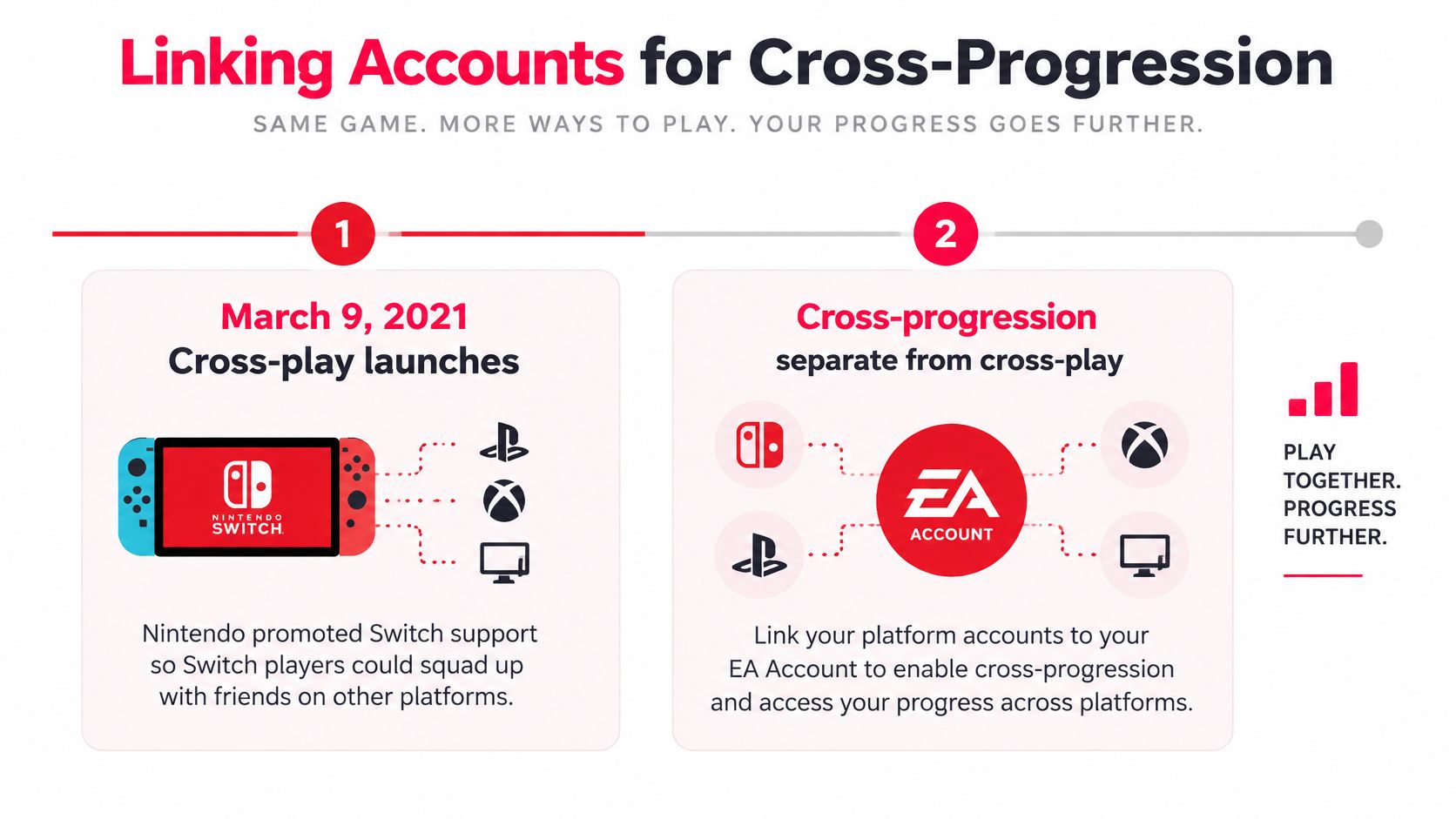
Cross-play puts players in the same match. Cross-progression lets account progress appear across linked platforms. They solve different problems.
Switch joined Apex cross-play on March 9, 2021, according to Nintendo's announcement. Cross-progression arrived later in a phased rollout tied to a single EA Account. Eligible platform accounts need to be linked to that account.
Apex Coins bought or earned on Nintendo Switch remain in a separate balance from the shared PC, PlayStation, and Xbox balance. Legends, many cosmetics, and general progress appear on the unified profile.
Link in this order
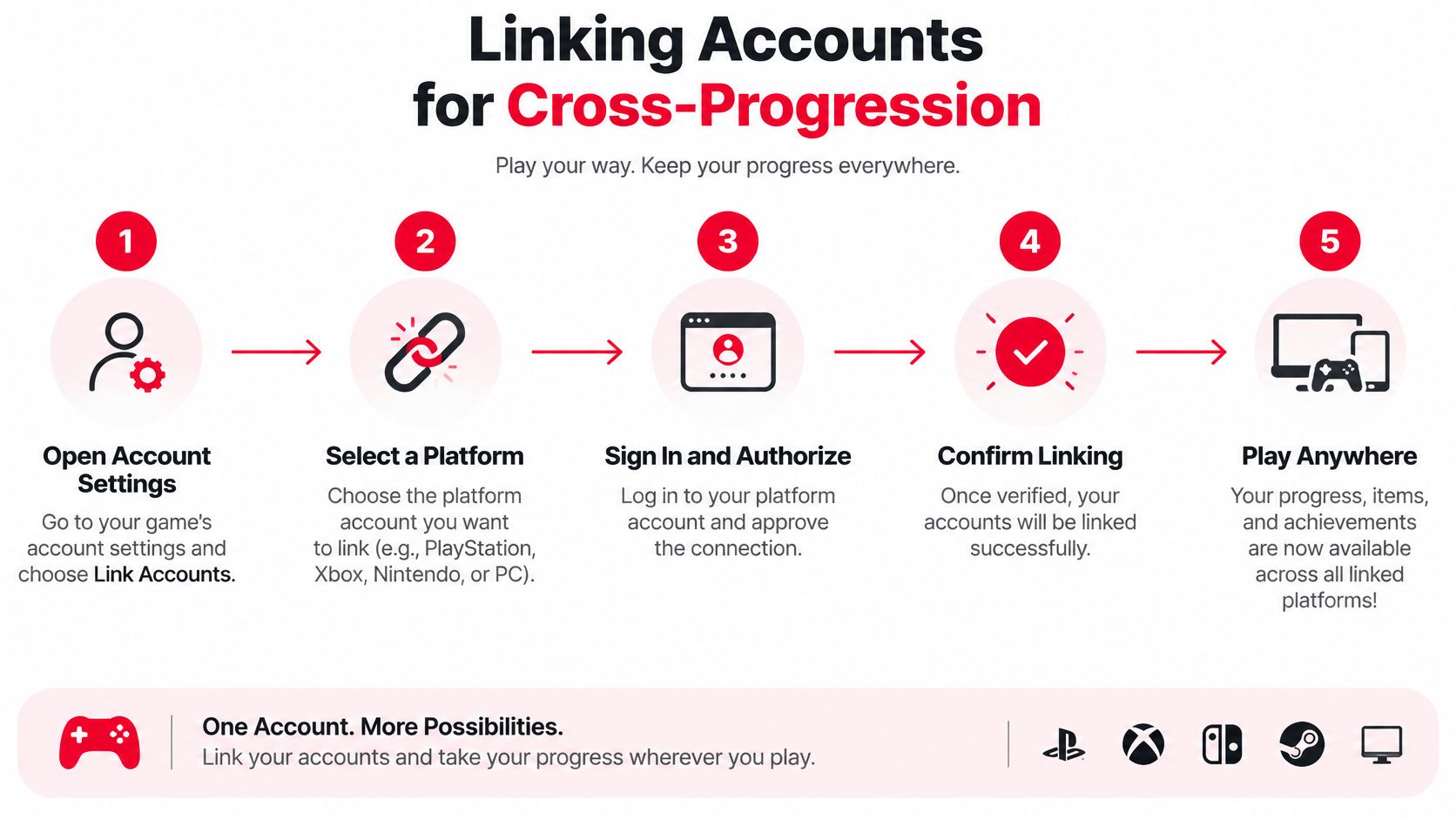
- Sign in to the EA Account you want to keep. Choose the account that holds your progress before linking any platform.
- Link each platform account to that EA Account. This includes PlayStation, Xbox, Nintendo Switch, and PC through the EA app or Steam.
- Check the connections. Cross-progression is enabled once the platform accounts are linked. No separate pass or feature toggle is required.
- Confirm the new platform is connected before playing. Check the account connections first, especially if you have more than one EA login.
Choose carefully if an old EA Account and your main account both have progress. Linking platforms to the wrong account can leave you looking at the wrong profile; linking later does not merge separate accounts.
Cross-progression makes it easier to use the same account across devices, but it does not combine competitive records. Your locker and general progress can follow the linked EA Account, while platform-specific rank and stats remain separate.
What Carries Over When You Switch Platforms
Guides that promise one unified multi-device life are selling the locker, not the ladder. Cosmetics and general account progression can travel once every platform account is linked to a single EA Account. Competitive identity does not come with them.
EA's cross-progression guidance is blunt on the split. Players automatically have Cross Progression once their platform accounts are linked. Stats are not merged. The primary profile's stats are kept. Stats from your other platform profiles are not combined into that number. Ranked leaderboards stay separated by platform, so a placement you earned on console does not show up on the PC board. Sharing a skin locker is not the same thing as sharing a competitive record. Some exclusive items stay behind as well.
| Item | Carries across platforms | Why it matters |
|---|---|---|
| Cosmetics and general account progression | Yes, once platform accounts are linked to one EA Account | Shared through the unified profile |
| Rank and competitive stats | No, stats are not merged | The primary profile keeps its stats; other platform profiles are not combined |
| Ranked leaderboard placement | No, boards are separated by platform | A console placement does not appear on the PC board |
| Progress after unlinking a platform account | No, access to progress and purchases can be lost | Progress cannot be moved to a different EA Account |
Unlinking is the expensive version of a tidy-up. Unlinking a platform account can cause loss of access to progress and purchases, and progress cannot be moved to a different EA Account. Treat the link as the account you mean to live on, not as a temporary bridge.
If I switch from console to PC, will my rank, stats, and leaderboard placement transfer? No. Not as a single merged record.
That answer changes how you should read a teammate. An account level, a heirloom, or a badge count from another platform is not their current competitive profile. Compare rank on the platform they will queue on. A Diamond history on PlayStation does not tell you where they sit on the PC ladder this split, and the reverse is just as true.
If you are still sorting which of your own platforms should be the one you take seriously, the notes on cross-platform compatibility are the right companion to this table. Use them to decide where you play, then judge teammates by that same platform, not by a blended level that Apex never builds.
Forming a Cross-Platform Squad Without Surprises
Run this before you queue, not after the drop ship leaves.
- Confirm the platforms and the logins. Each player should be on a supported platform and signed in on an EA Account that already has their platform accounts linked. A missing link is how someone loads in with an empty locker and a different name than the one you invited.
- Agree on the party makeup before anyone joins. Adding one PC player moves every member into PC matchmaking. Decide that on purpose. Don't discover it when the champion squad looks nothing like last night's console lobbies.
- Say whether a mixed console and PC squad is acceptable. Ask it in the listing or in chat, in plain language. "PC in the party, we will be in PC lobbies" is enough. Silence is not consent, especially for someone who only wanted a console fill.
- Compare rank on each player's own platform. Stats and leaderboards don't merge, so an account level is a weak skill signal. Ask where they sit on the platform they will play tonight. A console rank and a PC rank are two different answers, and you want the one that matches the queue.
- Set the mic expectation. Cross-platform squads often mix party chat, in-game voice, and someone on speakers. Agree on one channel and whether a mic is required. A silent third in a PC lobby is a harder handicap than a slightly lower rank.
A squad that settles pool, rank, and voice before the first match spends the drop talking about rotations, not about why the lobby feels wrong.
If someone on console wants out of mixed lobbies entirely, the steps for turning off cross-play in Apex are the off switch to read before you build the party. Turning it off is a real choice with queue costs. Knowing that choice exists is better than arguing about it mid-match.
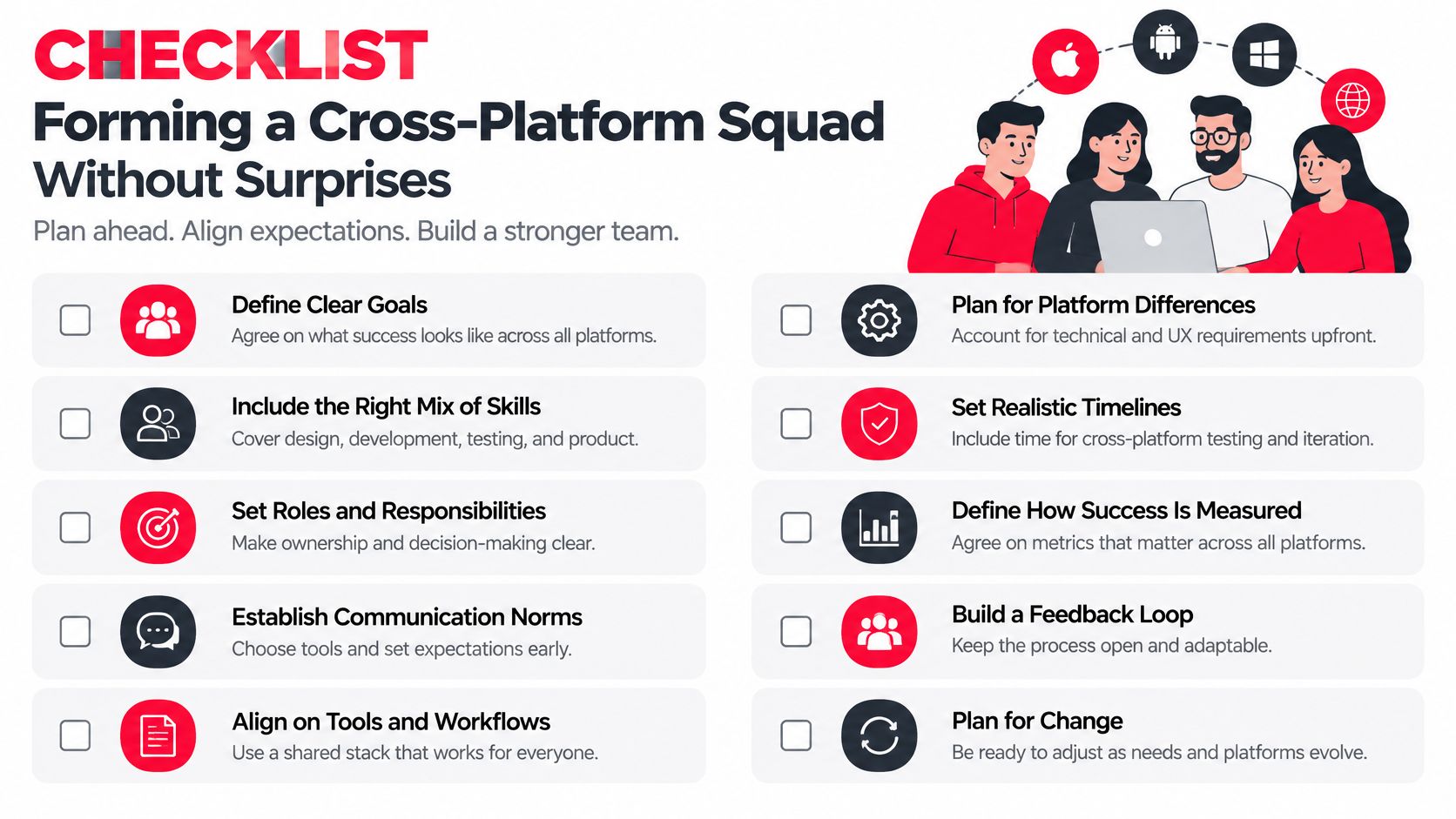
Most bad mixed sessions fail on step 2 or step 4. People add a friend because the friend is online, then act surprised by the pool. Or they trust a single account level and find out, three games in, that the rank was earned on a platform nobody is playing tonight. The checklist is short because the mistakes are short. Fix them before you ready up.
Find Cross-Platform Apex Teammates on GamerPlug
Once you know which pool a party enters and which rank counts, the remaining job is finding people who match that setup. We built GamerPlug for that search. It is free on iOS, Android, and the web, and a listing can carry the details random fill never asks for.
Do the three steps in order.
Link first. Attach your platform accounts to the EA Account you play on before you look for a squad. You want your name, your locker, and your real platform rank visible when someone checks you, not a half-finished login.
Post the mix in the listing. When you post a squad, you choose the game mode, the rank range, the platform, and whether a mic is needed. Use those fields. Write the platform composition in plain language, including whether a PC player will pull the party into PC matchmaking, and say if a mic is required. Someone who only wants a console pool can scroll past. Someone who is fine with PC lobbies can join on purpose.
Check the rank on the platform they will play. Squad requirements on GamerPlug are checked against players' real stats, which matters here because Apex never merges those stats across platforms. Look at the rank for the platform in the listing, not a level carried over from another box. If the squad is a console stack, a PC badge is the wrong signal. If the squad has a PC player, the console badge is the wrong signal.
That order keeps the first match boring in the right way. Accounts are linked, the pool is named, and the rank you saw is the rank they queue with. For how squads fill and what to put in a post, the notes on Apex Legends teams pick up from here. Create an account, post a squad with the slots you still need, and run the platform, pool, rank, and mic checks before the first ready-up.
GamerPlug is the free place to find Apex teammates who match your platform, your rank on that platform, and whether you want a mic. Post a squad with the mode, the rank range, and the platform mix so nobody walks into a PC lobby by accident. When you're ready to fill those slots with people you can check before you queue, visit Gamerplug.