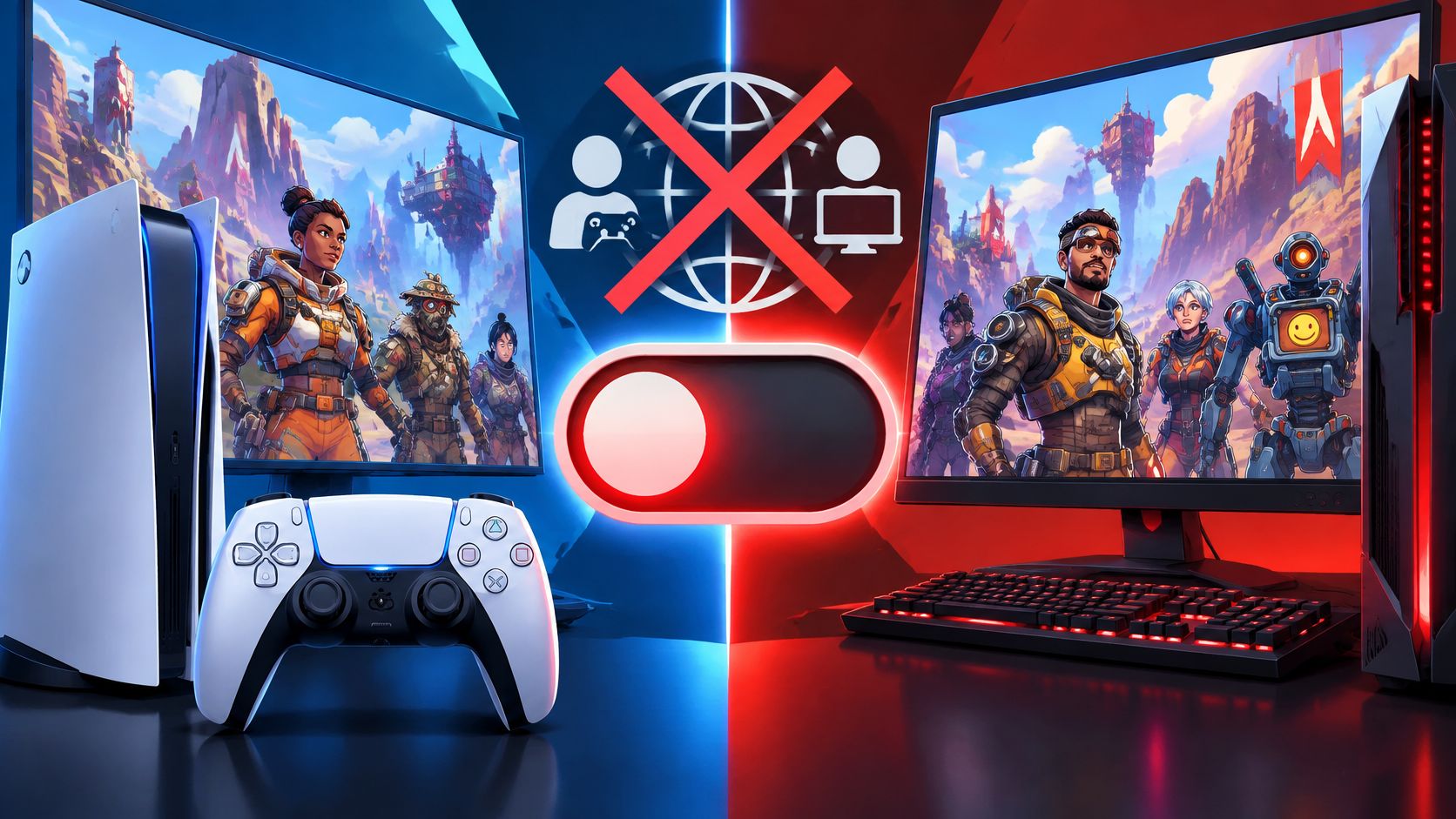
You're in the Apex Legends lobby, your friends are getting ready, and you want crossplay off before anyone hits Ready. Then someone on PC starts looking for the same switch and can't find it. That's the catch: your platform determines whether you can opt out, so sorting out who you'll queue with matters just as much as finding the setting.
Table of Contents
- Which Platforms Let You Turn Off Crossplay
- What Turning Off Crossplay Changes in Matchmaking
- How to Turn Off Crossplay on Console
- Why PC Players Cannot Use the Same Toggle
- Fixes When Crossplay Settings Do Not Stick
Which Platforms Let You Turn Off Crossplay
PlayStation, Xbox, and Nintendo Switch players can turn crossplay off in-game, but PC players don't have an equivalent toggle. Check your platform before changing settings or asking everyone in your squad to follow the same instructions.
Crossplay opt-out by platform
| Platform | Can you turn off crossplay in-game? | Notes |
|---|---|---|
| PlayStation | Yes | Set Cross Platform Play to Disabled to opt out; Enabled reverses it. |
| Xbox | Yes | Same path and values as PlayStation. |
| Nintendo Switch | Yes | Confirm current Switch support on EA's latest update page before relying on the setting. |
| PC | No | No in-game toggle; agree on platforms with your squad before queuing. |
Crossplay is enabled by default, so you can be opted in without having deliberately selected it. The setting is called Cross Platform Play, and you access it through the lobby's game menu rather than searching the initial main menu.
The table answers a settings question, not every question about playing together. Being able to connect with another platform and choosing to opt out of cross-platform matchmaking are separate decisions. If your friends use different consoles, our guide to whether PS5 can play with Xbox helps distinguish platform compatibility from the preference you're setting here.
Check the device you'll actually play on
Use the platform running Apex for tonight's session, not the platform your friends usually associate with your username. A player who normally joins on PlayStation but launches Apex on PC needs to plan around the PC controls available that evening.
For Nintendo players, confirm current support for the specific Switch hardware you're using. EA has updated Switch support over time, so an older console tutorial shouldn't be your only basis for deciding whether the game and its settings are available on your device.
Before inviting anyone: Ask which platform they're launching Apex on tonight. Don't assume their usual platform is the one they'll use.
It also helps to distinguish a console preference from a squad agreement. Saying you prefer crossplay off doesn't tell a PC friend how they're supposed to join, and sharing a screenshot of a console toggle won't give them that control.
Console players can use the menu instructions below. PC players should spend their effort arranging a compatible squad instead of searching additional settings screens for an opt-out switch that isn't available.
What Turning Off Crossplay Changes in Matchmaking
The setting changes matchmaking eligibility for your account, not your relationship with a particular friend. It isn't a way to exclude one teammate while leaving every other cross-platform arrangement untouched.
That distinction matters if your real problem is who keeps joining your party. Handle that through your invitations and group communication. Changing crossplay is a broader matchmaking choice, not a selective friend filter.
The practical trade-off is the available pool of players. When you restrict who you can match with, you give matchmaking fewer eligible players to work with. Longer queues are a possible consequence, particularly when fewer eligible players are online, but there's no reliable waiting-time promise you should build your session around.
Choose for the session you want
Keep crossplay on when your regular squad spans platforms and playing together is the priority. It's also the sensible starting point when you play during quiet hours and would rather preserve matchmaking options than impose another restriction.
Turning it off makes more sense when everyone intends to play on the same console platform and explicitly wants to opt out of cross-platform matchmaking. Even then, agree on what you'll do if the wait becomes frustrating. Returning to Enabled is a reversible choice, not a permanent commitment.
If you're organizing a ranked session, discuss the queue preference alongside your other expectations. Our Apex Legends ranked system guide is useful for the ranked side of that conversation, but crossplay preferences still need a separate agreement.
Treat crossplay as a session preference you settle before Ready, not a fix you apply after the squad has already made incompatible plans.
A split squad needs an explicit plan
Say your console friends want an opt-out session while a PC friend plans to join later. The console players can play their preferred session first, while the PC player remains in the matchmaking environment available to them.
Agree on a meeting time and decide beforehand whether the console players will restore crossplay for the shared session. Otherwise, the PC friend arrives expecting an invitation while everyone else expects to keep their restriction.
The useful question isn't whether crossplay should be on or off. It's whether you value this restriction more than joining this particular squad tonight. Settle that with the group, then choose the setting that supports the answer.
How to Turn Off Crossplay on Console
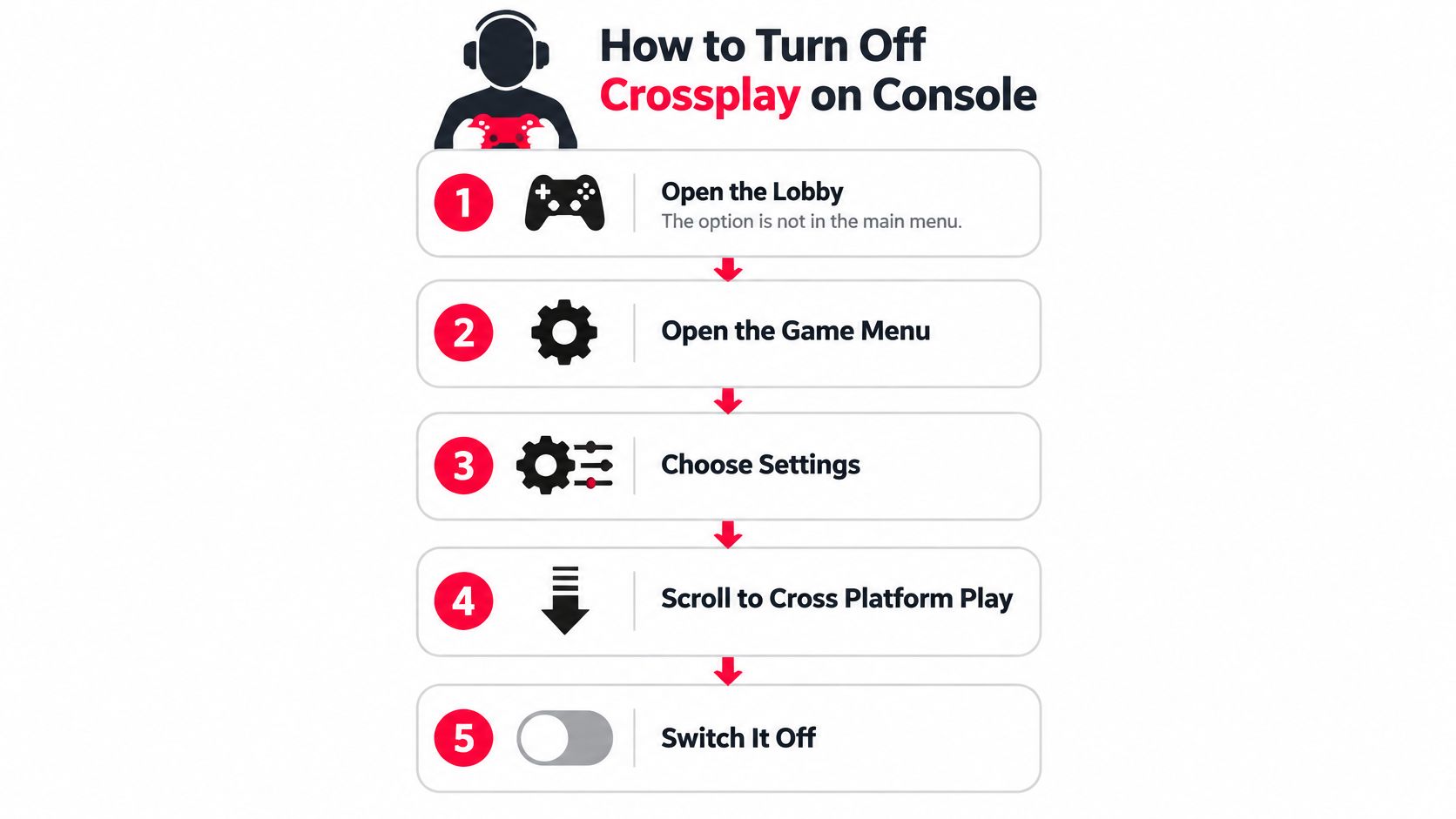
On console, the crossplay control sits in Apex's lobby settings. Open the cogwheel or Game Menu, then go to Settings → Cross Platform Play. Select Disabled and check the displayed value before leaving the menu. The EA Help crossplay guide also documents this route.
Use this visual as a quick reference while moving through the lobby menus.
Follow the menu path and verify the result
Start Apex Legends and enter the lobby. Wait until you reach the screen where you prepare your squad and queue for a match. The setting is in the lobby menus, not the initial main menu.
Select the cogwheel or open the Game Menu. Use Apex's in-game menu, not your console's system settings.
Choose Settings. Stay in the game's settings interface. The crossplay preference is separate from your profile and friends list.
Scroll to Cross Platform Play. Read the label carefully rather than changing a different networking or social setting. If it isn't there, check that you're on a supported console and in the lobby.
Set Cross Platform Play to Disabled. Confirm that the displayed value changes. Highlighting the row alone doesn't switch the option.
Leave Settings, then reopen them. Return to Cross Platform Play and check that it still reads Disabled. Confirm the value shown in the menu, rather than relying on memory.
To restore crossplay, select Enabled in the same menu. Make the change before arranging a session that requires cross-platform play, then reopen the setting to confirm it.
Check the account as well as the console
If you use more than one console account, check the setting on each account you play with. Changing it under one login doesn't establish the preference for everyone using that console.
Make this confirmation check before sending invitations. It's simpler to resolve the setting while you're alone in the lobby than while your friends are waiting.
For a video walkthrough alongside the written steps, use the player below.
Success looks like Cross Platform Play reading Disabled when you reopen Settings. That confirms the displayed preference for the account you're using. It doesn't confirm another account's setting or guarantee a quick match. Check the setting before inviting your squad.
Why PC Players Cannot Use the Same Toggle
The easy assumption is that Apex has the same matchmaking switches everywhere, with the PC version placing them somewhere else. That assumption is wrong: PC has no in-game crossplay opt-out. Searching another tab won't reveal the console control.
That's a platform limitation, not evidence that your installation is broken. You don't need to reinstall Apex, switch PC launchers, or copy a console player's settings to solve a missing option that isn't offered on PC.
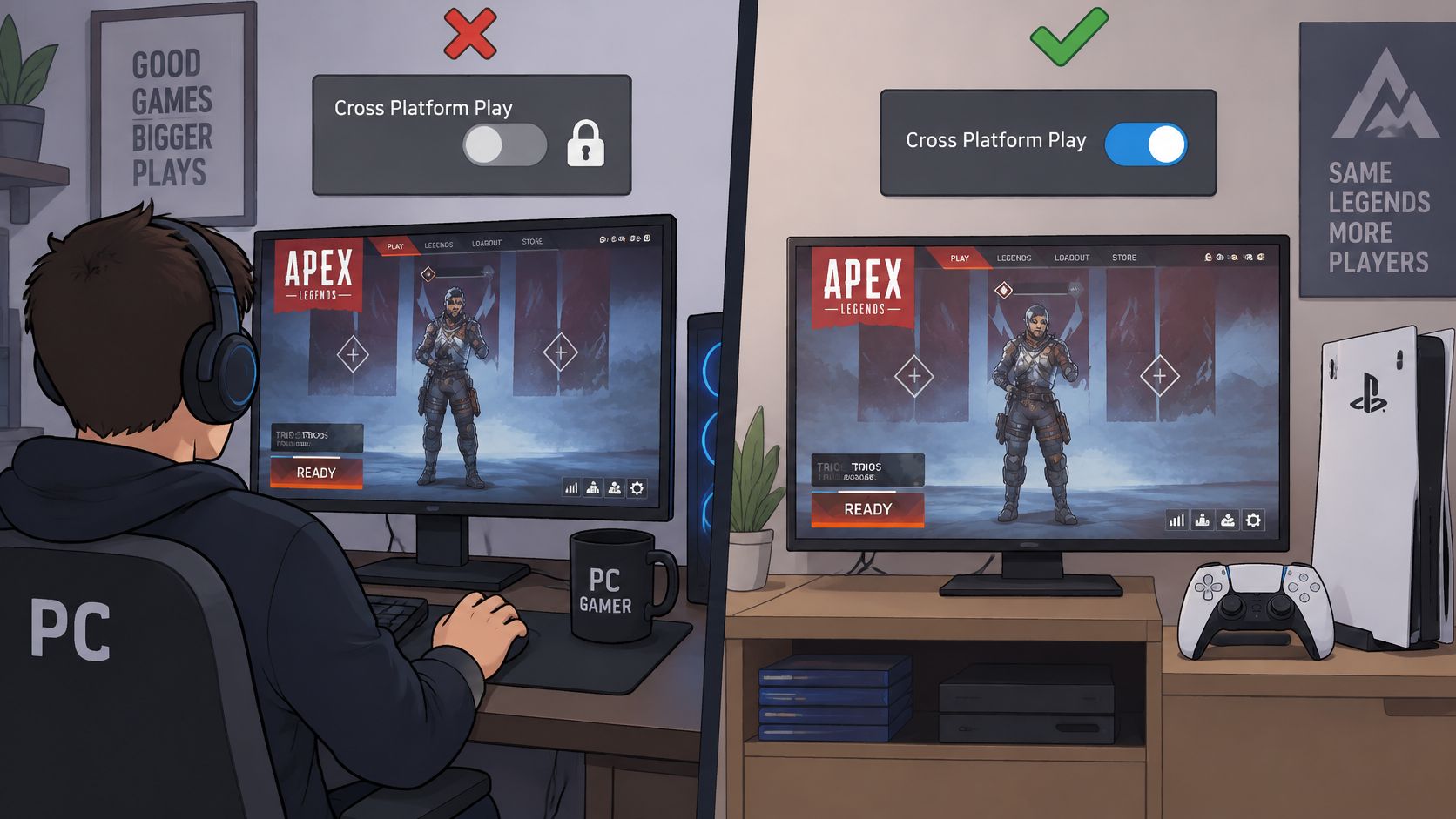
The illustration below compares the platforms visually, but it shouldn't be read as proof of an available PC switch. The operational distinction is that console players have the opt-out control and PC players don't.
Resolve the mismatch before forming the party
Say a PS5 player disables crossplay, then arranges to queue with a PC friend who expects to select the same preference. When they try to get the session moving, they discover that they've planned around controls only one of them has.
The mistake happened during planning, not during menu navigation. The PS5 player chose a restriction while the PC player assumed the entire party could adopt it. Neither player can make those different platform controls identical by changing who sends the invitation.
A useful pre-queue message should establish:
- Current platform: Ask what each person is playing on for this session, not which devices they own.
- Console preference: Ask whether each console player intends to keep crossplay enabled or disabled.
- Shared priority: Confirm whether everyone wants to play together or whether some players prefer a separate opt-out session.
Make your LFG post specific
Write the platform and preference together. A listing that says PS5, crossplay off communicates a different plan from a mixed-platform Apex squad looking for another teammate.
On Gamerplug, we let squad posters choose the platform, game mode, rank range, and mic requirement. Use the platform field deliberately, then state the crossplay preference in your squad description or chat so nobody has to infer it.
For PC players, the next move is straightforward: ask every squad member for their platform in group chat and agree on the console accounts' preferences before the first match. Join or post a squad whose platform requirements fit that plan. Teammate selection does the planning work that a missing PC toggle can't do.
Fixes When Crossplay Settings Do Not Stick
If Cross Platform Play appears to revert after you leave the menu, start by checking the displayed value again. Don't diagnose a persistence bug solely from a long queue or an unexpected teammate, neither tells you what the settings screen currently says.
The checks below are troubleshooting starting points, not proof of a particular fault. A menu-location mistake or account mismatch is worth ruling out before you change anything else.
Crossplay setting problems and fixes
| Symptom | Likely cause to check | Fix |
|---|---|---|
| Setting reverts after you leave the lobby | The change wasn't confirmed, or you used the wrong menu | Reopen Settings from the lobby, confirm Disabled, then queue. |
| Cross Platform Play option missing | You're looking from the main menu instead of the lobby | Open the lobby first, then the cogwheel or Game Menu. |
| Still matched across platforms after opting out | You checked a different console account | Verify the account you play with, then compare the behavior with EA's help page. |
| Switch option unclear | Your instructions may not reflect current Switch support | Check EA's latest Switch support update before relying on the setting. |
Separate a missing option from a failed change
On console, retrace the exact lobby route before concluding the setting has disappeared. Check that you're looking inside Apex, rather than the console dashboard, and read the full option label.
On PC, the absence of the toggle isn't a fault to repair. Stop troubleshooting menus and resolve the party's platform requirements instead. A console tutorial can show a genuine setting without being applicable to your PC session.
For Switch, check the supported hardware first. EA's Nintendo Switch support update is the appropriate place to confirm platform availability before treating an old menu walkthrough as current guidance.
Diagnostic check: Record what the option actually displays and which account is signed in. Those details are more useful than saying crossplay seems broken.
Don't confuse matchmaking preferences with connection problems
If the option stays Disabled but matches feel unstable, investigate that as a separate issue. Crossplay is a matchmaking preference, not a general repair switch for stuttering, dropped packets, or inconsistent connections.
Our Apex Legends packet loss guide addresses that different troubleshooting path. Keeping the problems separate prevents you from repeatedly changing a working preference while leaving the connection issue untouched.
Finish with a short pre-queue routine: open the lobby, open Settings, confirm the value, then queue. Use the account you intend to play on, and tell the squad if you change the preference. That turns a remembered selection into a checked setting before anyone depends on it.
Gamerplug helps you find Apex teammates and post squads with a chosen platform, mode, rank range, and mic requirement. Visit Gamerplug, find players who fit your session, and agree on crossplay before you send the first invite.