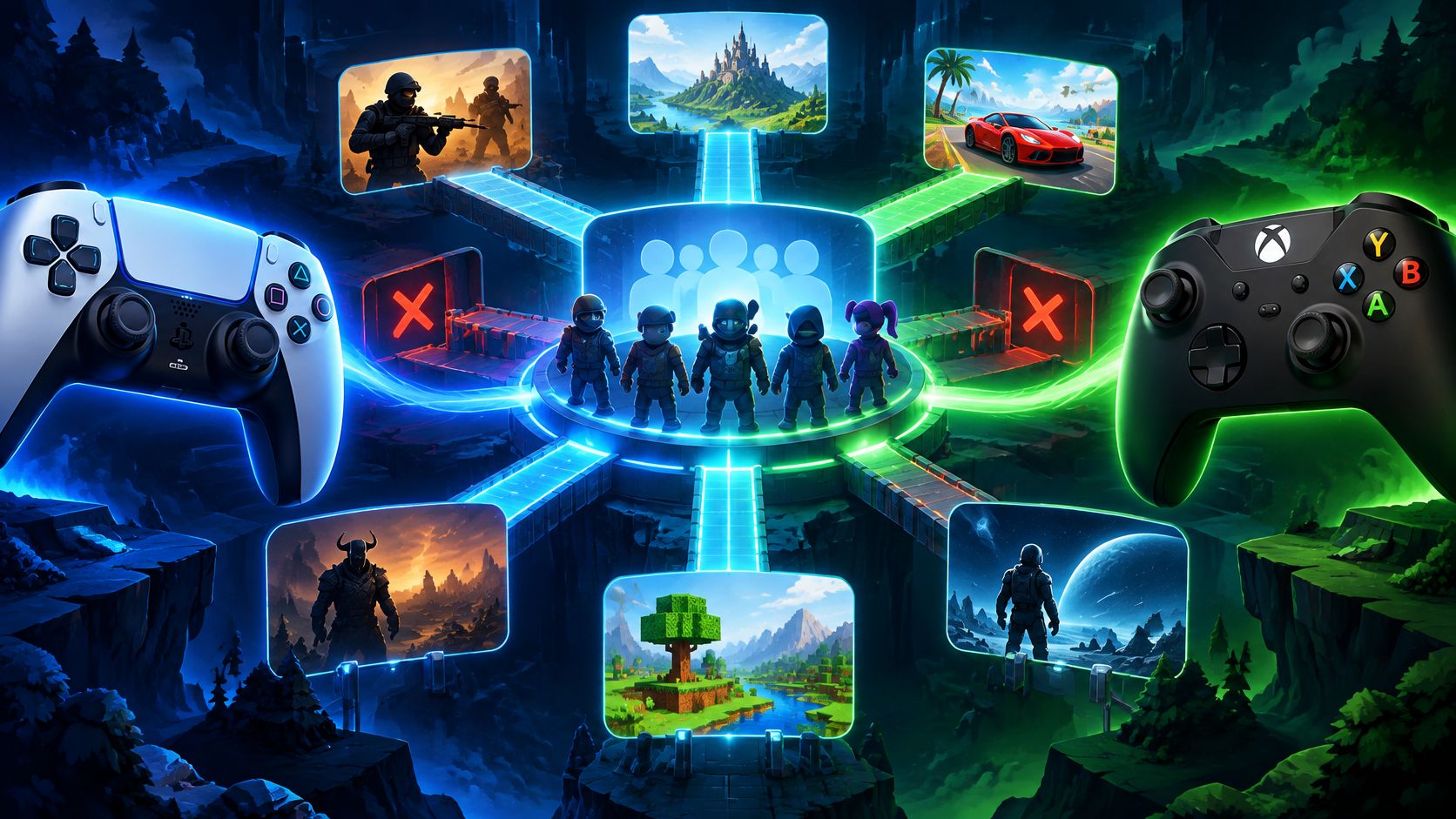
Yes, PS5 and Xbox players can play together, but only in specific games and modes that support cross-network play. Owning the consoles isn't enough, both players need a compatible game and the right account settings.
Why can the same friends join a Fortnite party but get stuck trying another game? The missing detail is usually the game's multiplayer rules, not which console sits under the TV. Treat crossplay as a setup task, and you'll know what to check before everyone spends their evening sending failed invites.
Table of Contents
- Which Games Let PS5 and Xbox Players Join One Lobby
- Why Crossplay Depends on the Game, Not the Console
- How to Prepare a PS5 and Xbox Squad Step by Step
- How Crossplay Plays Out in Fortnite, VALORANT and Rocket League
- Fixing PS5 and Xbox Crossplay Problems That Block Your Party
- Weighing a Mixed Squad and Your Next Step
Which Games Let PS5 and Xbox Players Join One Lobby
Which games let PS5 and Xbox players share a lobby? Check the specific edition and mode, not just the franchise name. Minecraft: Bedrock is a clearer match than Minecraft, and a Call of Duty release plus playlist is more useful than the series name alone.
The Games Genie crossplay guide lists Fortnite, Minecraft: Bedrock, Rocket League, Apex Legends, Diablo IV, Sea of Thieves and Call of Duty as crossplay options. Platform pairs, modes and account requirements can still affect access.
PS5 and Xbox crossplay status by game
| Game | PS5 and Xbox Crossplay | Extra Requirement |
|---|---|---|
| Fortnite | Yes | Cross-progression is available on PS5 and Xbox Series X and S |
| Rocket League | Yes | Crossplay toggle must be on in settings |
| Apex Legends | Yes | Check mode and account setup in the store listing |
| Call of Duty | Yes | Check the exact release, mode and account setup in the store listing |
| Minecraft Bedrock | Yes | Check mode and Microsoft account setup in the store listing |
| Diablo IV | Yes | A publisher account may be required |
| Sea of Thieves | Yes | Check mode and account setup in the store listing |
| VALORANT | Console only, separate from PC | PS5 and Xbox Series X and S squads only |
A “yes” means the game supports cross-network play, not that every playlist, edition or account combination can join. Treat the final column as a prompt for what to check next.
VALORANT's console matchmaking pool is separate from PC players. Check the game's current crossplay status before forming a party.
Read the edition before buying
For Minecraft, confirm that your copy is Bedrock. Seeing Minecraft on both boxes does not tell you whether the editions match. For Call of Duty, agree on the release and mode before downloading or inviting friends.
Before buying or downloading, check three details:
- Platform pair: Look for support for your PlayStation and Xbox versions.
- Edition and mode: Confirm that both players can access the multiplayer experience you want.
- Account requirement: Check whether a separate publisher login is needed.
Use the table to identify the game, then consult its current store listing or publisher documentation for setup details. Updates can change available modes and instructions, so an old crossplay label may not reflect the current setup.
Why Crossplay Depends on the Game, Not the Console
Owning a PS5 or Xbox is a little like owning a phone. The device gives you access, but a call still needs a compatible service and permission to connect.
Microsoft's official cross-network multiplayer documentation defines the feature as multiplayer interaction between Xbox services and other networks, including PlayStation, Nintendo and, in some cases, PC. It also makes the central limitation clear: availability is determined by the game, not automatically granted to every multiplayer title.
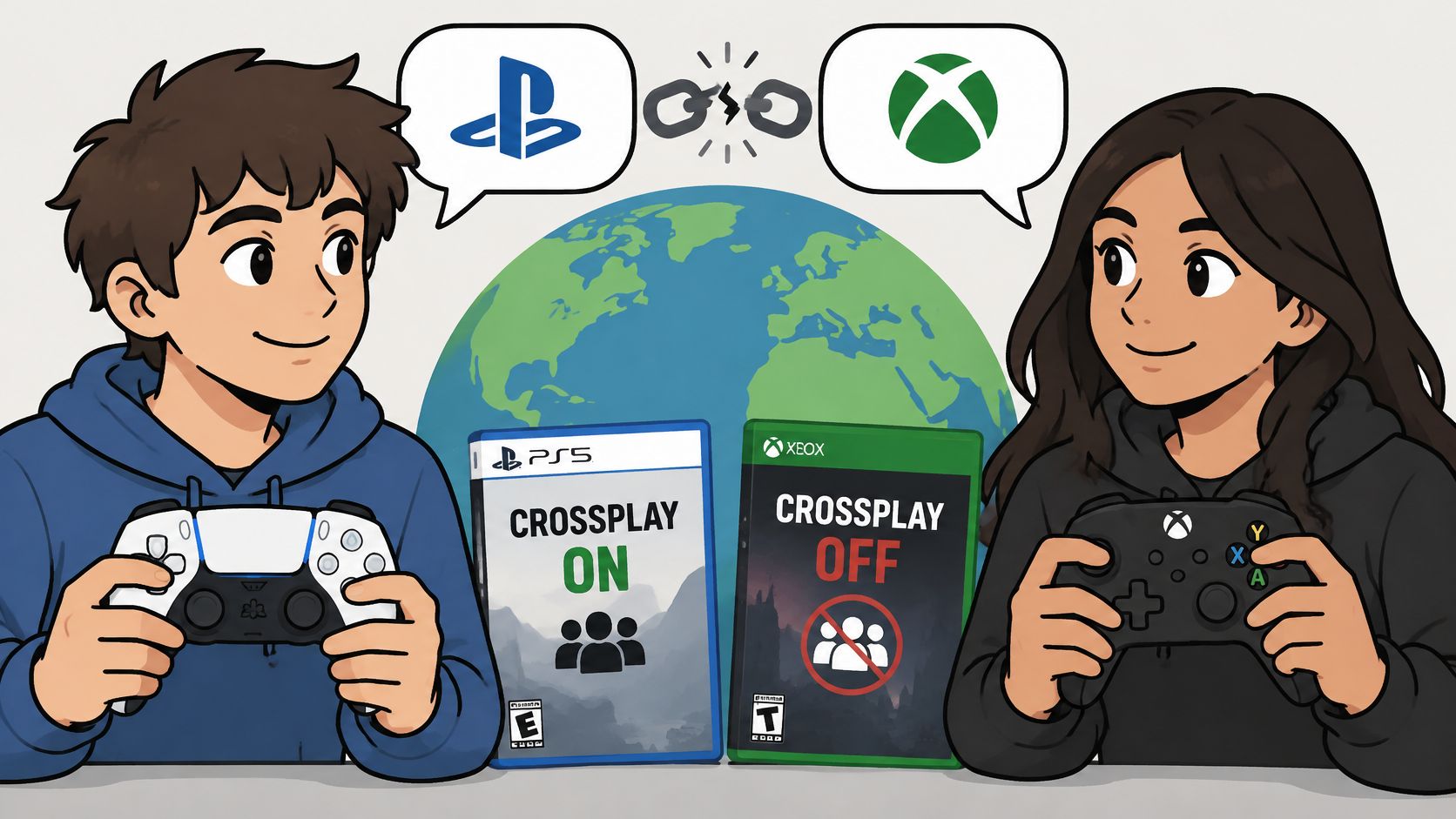
The layers behind a successful connection
A working cross-console session needs several separate things to line up:
- Platform infrastructure: The networks must provide a way for supported games to connect players.
- Developer implementation: The game must use that capability for your platform pair and chosen activity.
- Player permissions: Account, privacy, age and communication settings must allow the interaction.
That explains why a successful connection in one title proves very little about another. A developer might support shared matchmaking but restrict particular modes, generations or player pools. Players can also encounter a supported feature that their own settings prevent them from using.
Practical rule: Ask whether this game and mode support your squad, not whether PlayStation and Xbox are universally compatible.
Joining and talking are separate permissions
Don't assume a successful invite means every social feature is ready. Participation, invitations and voice communication can involve different permissions, especially on accounts managed by a parent or guardian.
A child account might need an authorized adult to review restrictions rather than another attempt at sending the same invite. Changing the lobby host won't override an account's permissions.
Our cross-platform compatibility guide can help you distinguish platform support from the account and game settings underneath it. The useful question isn't “Can PS5 play with Xbox?” It's whether your exact combination of title, version, mode and permissions can connect.
How to Prepare a PS5 and Xbox Squad Step by Step
Do the setup before your scheduled session, especially if someone hasn't played the game before. Downloading the correct edition is only the beginning, a new account or an unnoticed permission prompt can still keep that player outside the lobby.
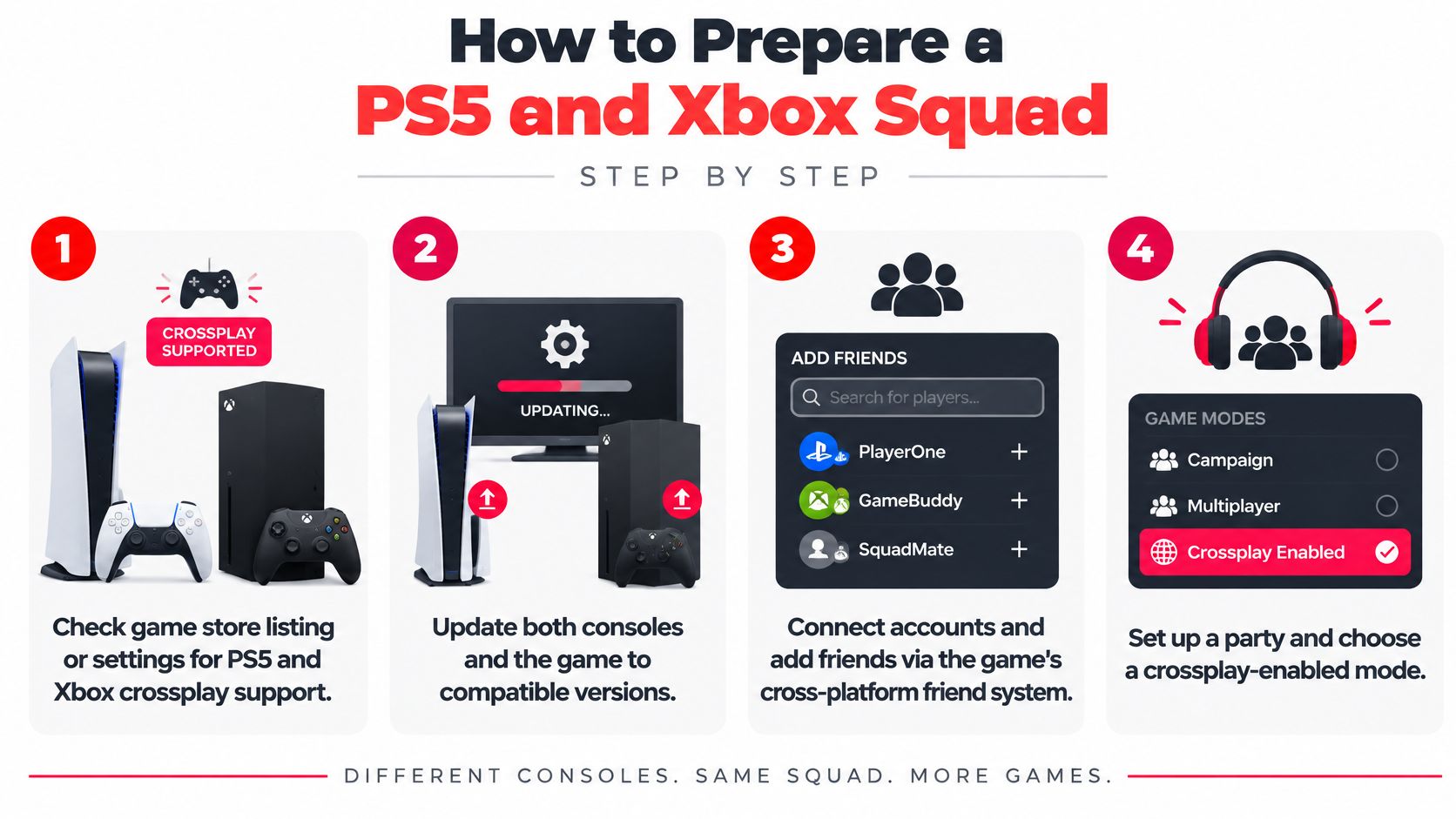
Run the preflight checklist
Confirm the supported platform pair. Open the game's store listing or publisher help page and look for PS5 and your friend's exact Xbox generation. Don't substitute a general multiplayer label for explicit crossplay support.
Install compatible versions and finish updates. Check for game and console updates on both sides, then relaunch the title after installation. If the game offers separate editions or console-generation downloads, make sure everyone has the intended version rather than assuming the newest console selected it automatically.
Connect the required publisher account. Follow the game's account-linking prompts using the account you intend to keep. Depending on the title, this could involve Microsoft, Battle.net, Ubisoft Connect, Capcom or Warframe credentials, so don't create an extra account because you've forgotten an existing login.
Exchange in-game IDs. Open the title's social or friends menu and add your teammate using the identifier it requests, including any discriminator or suffix. Adding someone to a console friends list isn't a substitute when the game manages cross-network friendships itself.
Enable crossplay and review permissions. Look in the game's gameplay, online or account settings for its crossplay control. On both consoles, also review online multiplayer, cross-network communication and parental restrictions, with the account organizer handling protected settings where necessary.
Select a shared activity. Agree on the playlist before sending the final invite, and make sure everyone has access to it. A compatible multiplayer game can still leave your party blocked if the host selects an unavailable activity or incompatible matchmaking pool.
Choose one voice method. Decide whether everyone will use game chat or a mutually supported outside voice app. Check microphone input, mute status and channel selection so one player isn't speaking in a console party while everyone else listens in the game.
Check access, then test the lobby
Before troubleshooting deeper, confirm that each player has whatever paid online membership the game and console require. Don't assume either that every game requires a subscription or that a membership on one platform covers another.
For more help organizing the joining process, use our guide to joining a game. Keep the game ID, mode and voice method together in the invitation message so nobody has to reconstruct the plan from scattered chats.
Finish with a practical test: send an invitation in each direction, enter the same lobby and confirm that everyone can hear and be heard. Launch the intended activity too. A visible name in the social menu isn't the same as a working session.
How Crossplay Plays Out in Fortnite, VALORANT and Rocket League
A Fortnite duo with different consoles
Say a PS5 player and an Xbox Series X player want a Fortnite duo. They accept each other through Fortnite's cross-platform friend system, enter the same party and choose a shared activity before queuing.
Their ability to play together doesn't require identical video settings. Epic's Fortnite platform announcement documents 120 FPS Mode for Battle Royale and Creative on PS5 and Xbox Series X and S, alongside crossplay and cross-progression support.
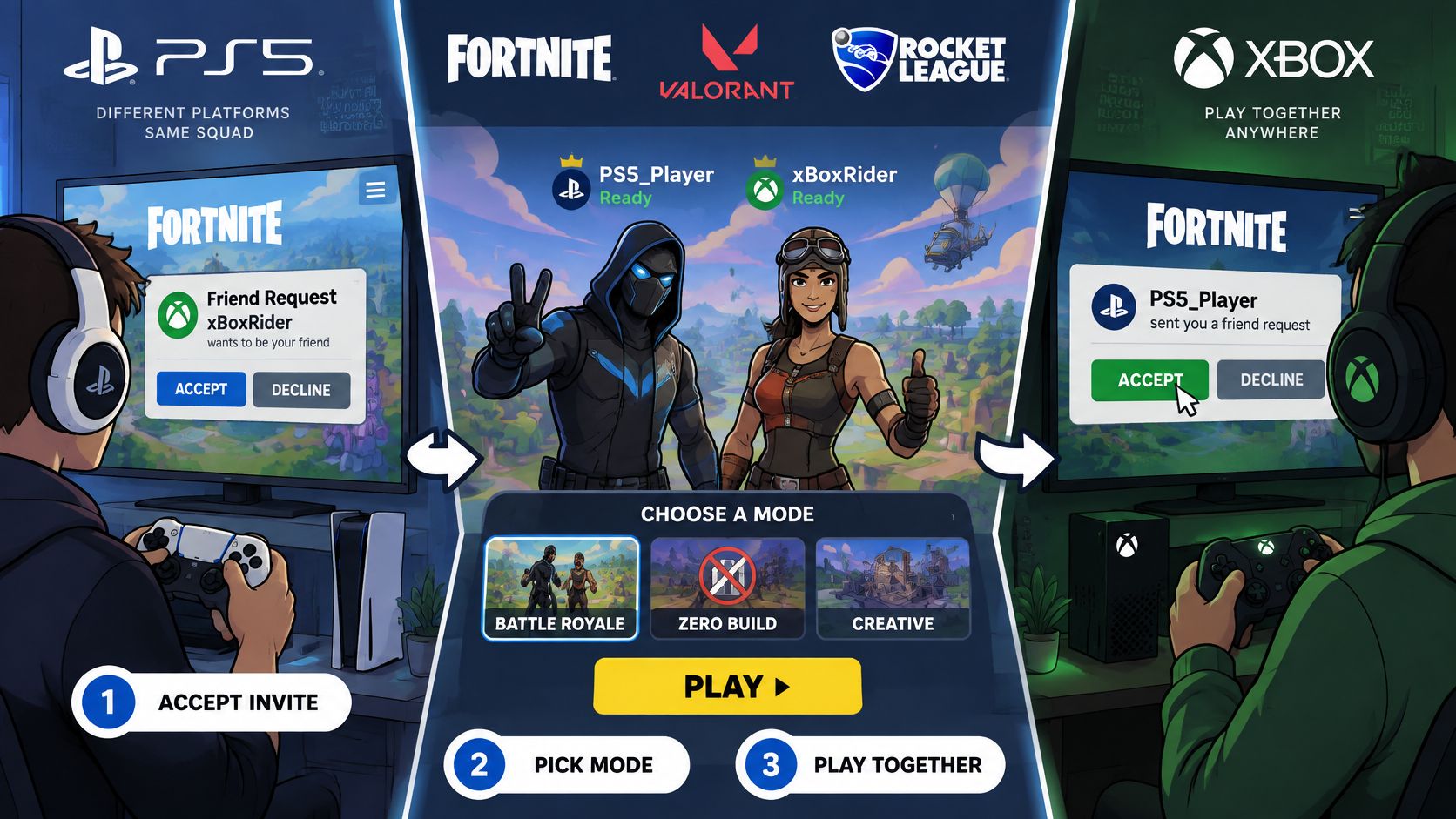
If their displays support that mode, they can enable it in video settings. It's an optional performance choice, not a crossplay requirement, and a player without a compatible display shouldn't treat it as the reason an invitation failed.
Once connected, they can compare responsiveness separately. Display latency, input method and frame-rate settings affect how play feels, even though the network allows them into the same match.
A VALORANT group with a PC friend
Consider a VALORANT group made up of PS5 and Xbox Series X and S players. Their console mix is compatible, but adding a PC friend changes the situation: that friend belongs to a separate matchmaking pool.
The group shouldn't spend the evening toggling privacy settings to force that combination. Our VALORANT cross-platform guide explains the console-versus-PC distinction so players can plan a compatible roster.
Their realistic choice is to keep that session console-only or choose another game that supports everyone's platforms. A working account link doesn't remove a game's matchmaking boundary.
A Rocket League party with a disabled toggle
Now consider a Rocket League player who previously turned crossplay off. Before the mixed party forms, they open the game's settings and enable Cross-Platform Play.
That's a player-controlled setting rather than a hardware limitation. The useful distinction is whether the squad has encountered something it can change, such as a toggle, or something the developer doesn't permit, such as an excluded platform pool.
A failed invite is a symptom, not a diagnosis. Identify the restriction before changing unrelated settings.
The shared lesson is to test the actual title and activity, rather than assuming the same friends can use the same setup everywhere.
Fixing PS5 and Xbox Crossplay Problems That Block Your Party
If your friend is missing from the console friends list, start inside the game. Open its Social, Friends or Add Friend menu and search for the requested game ID, not just the person's PlayStation name or Xbox gamertag.
Work through free settings checks first, account linking next and game-level restrictions last. Menu labels differ between titles, so use the setting's purpose rather than hunting for a universal crossplay screen that every game shares.
Crossplay symptoms, causes and fixes
| Symptom | Likely Cause | Fix |
|---|---|---|
| Friend missing from console friends list | Game uses its own ID system | Add the friend by game ID inside the title |
| Crossplay option not shown | Title or mode restricts platform pools, or offers no player-facing toggle | Check the store listing and the mode's crossplay status |
| Invite fails | Privacy, age or parental-control setting blocks it | Review online multiplayer and communication permissions on both consoles |
| Version mismatch | One console or game installation isn't updated | Install available updates and confirm compatible game editions |
| Voice chat not working | Players are in different channels or communication is restricted | Select one shared voice method and check input, mute and channel settings |
| Cross-progression missing | Publisher account isn't linked, or the feature is absent | Confirm the linked account and whether the game supports cross-progression |
Don't change several settings at once. Make one adjustment, retry the invitation and note whether the symptom changes. Otherwise, you can fix the original problem while accidentally creating a new microphone or privacy issue.
Separate connection quality from compatibility
A party that forms successfully but feels delayed needs a different investigation from a party that can't form at all. Pause background downloads, check the game's connection indicators and try a wired connection where practical.
For help distinguishing connection capacity from delay, Simply Tech Today's plain-English explainer on internet responsiveness gives useful context. A faster internet plan won't enable an unsupported platform pairing, so don't spend money before identifying the actual problem.
- Invites fail immediately: Prioritize IDs, permissions, editions and account status.
- Players connect but can't talk: Inspect voice channels and communication controls.
- The match runs poorly after joining: Investigate the connection and local performance separately.
If the publisher explicitly excludes your platform combination, stop troubleshooting local settings. Pick a supported activity, choose another title or split into platform-matched groups. Players can change their setup, but they can't override the developer's matchmaking rules.
Weighing a Mixed Squad and Your Next Step
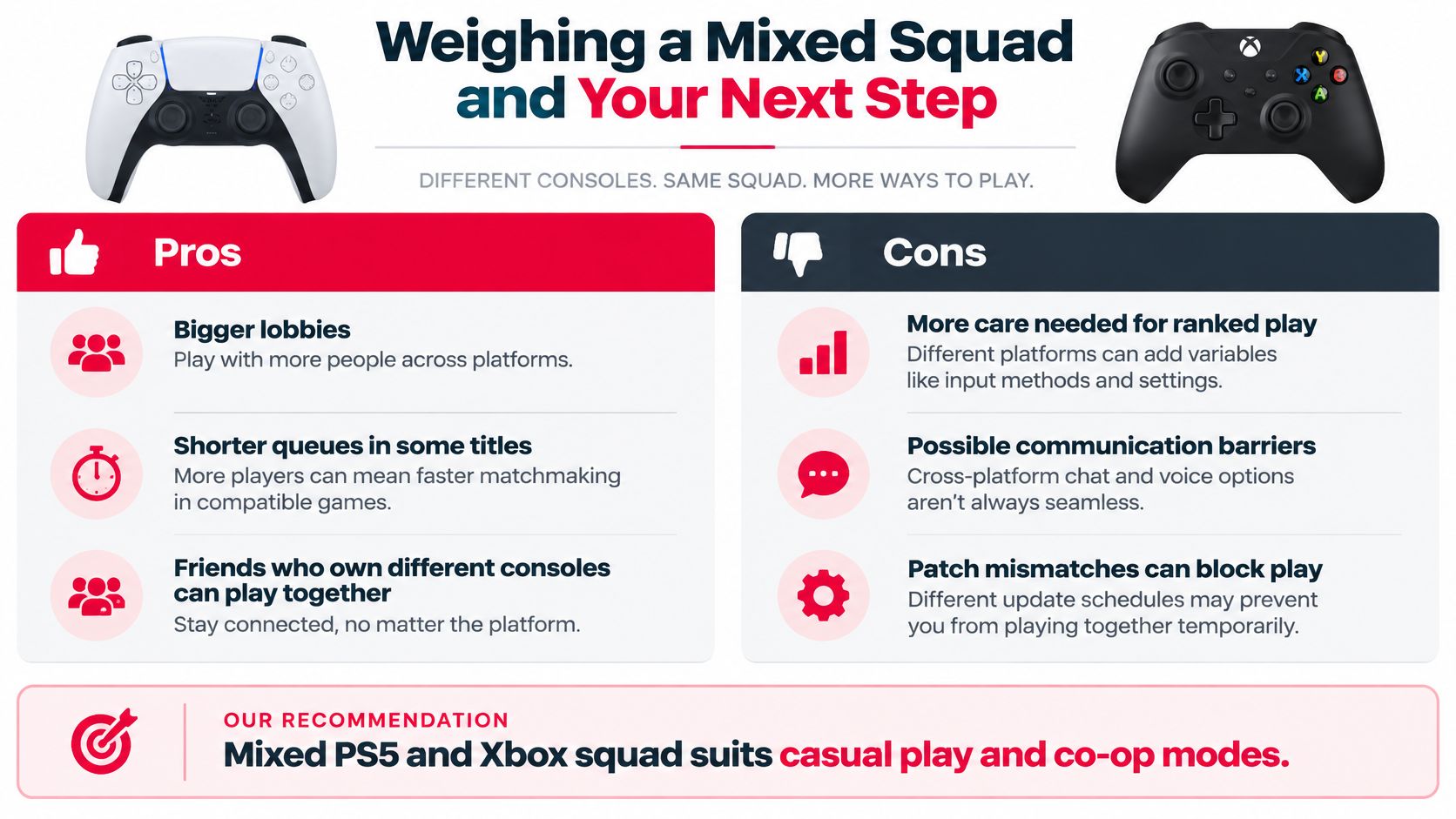
A mixed PS5 and Xbox squad is a sensible choice for friends playing supported casual or co-op modes. Ranked play deserves a closer check because the relevant question isn't just whether you can join, but which matchmaking pool you'll enter and how you'll communicate.
Microsoft's cross-network certification requirements describe capabilities including competitive sessions, team-based play, invitations and joining sessions already underway. That breadth helps explain why a crossplay label alone doesn't tell you everything about a particular party experience.
Compare the benefits with the extra coordination
| What you gain | What to weigh |
|---|---|
| Friends can stay together without owning matching consoles | Everyone must meet the title's account and mode requirements |
| Access to a broader eligible player pool | Queue speed still relies on region, mode, rank and active players |
| More flexibility when organizing co-op sessions | Voice methods and permissions need agreement |
| Less pressure to change hardware just to join friends | Input and display differences may matter competitively |
| Shared account progress where supported | Purchases and subscriptions may remain platform-specific |
A broader player pool can help a game fill matches, but shorter queues aren't guaranteed. Don't choose a mode solely because you expect crossplay to make matchmaking instant.
Likewise, don't treat cross-progression as a promise that everything you own moves with you. Check cosmetics, account progress, purchases and subscriptions separately before buying content or switching your main platform.
Choose according to the mode you actually play
For casual sessions, prioritize a friendly group, a shared activity and a voice method everyone can use. The setup is usually worth doing when it lets you keep playing with friends who already own different hardware.
For ranked sessions, establish the rules before recruiting. Confirm the platform and input pool, the game's party-rank restrictions and the region you'll use, rather than assuming similar-looking ranks represent identical eligibility.
Choose teammates for the session you want to play, not merely for the console they own.
When you're ready to find gaming teammates, post or join a squad with the platform combination, mode and mic requirement stated upfront. In our GamerPlug squad posts, you can choose the game mode, rank range, platform and whether a mic is needed, giving prospective teammates concrete requirements before they join.
Run the preflight test during the first session instead of discovering problems after everyone commits to ranked. If your usual mode supports the group and the setup stays manageable, a mixed squad is worth keeping. If your preferred activity excludes someone, choose a compatible game rather than repeatedly fighting the same restriction.
Gamerplug is a free teammate-finding app on iOS, Android and the web, with squad posts that let you specify mode, rank range, platform and mic requirements. Visit Gamerplug to find a compatible PS5 and Xbox squad, then test your lobby and voice chat before the first match.