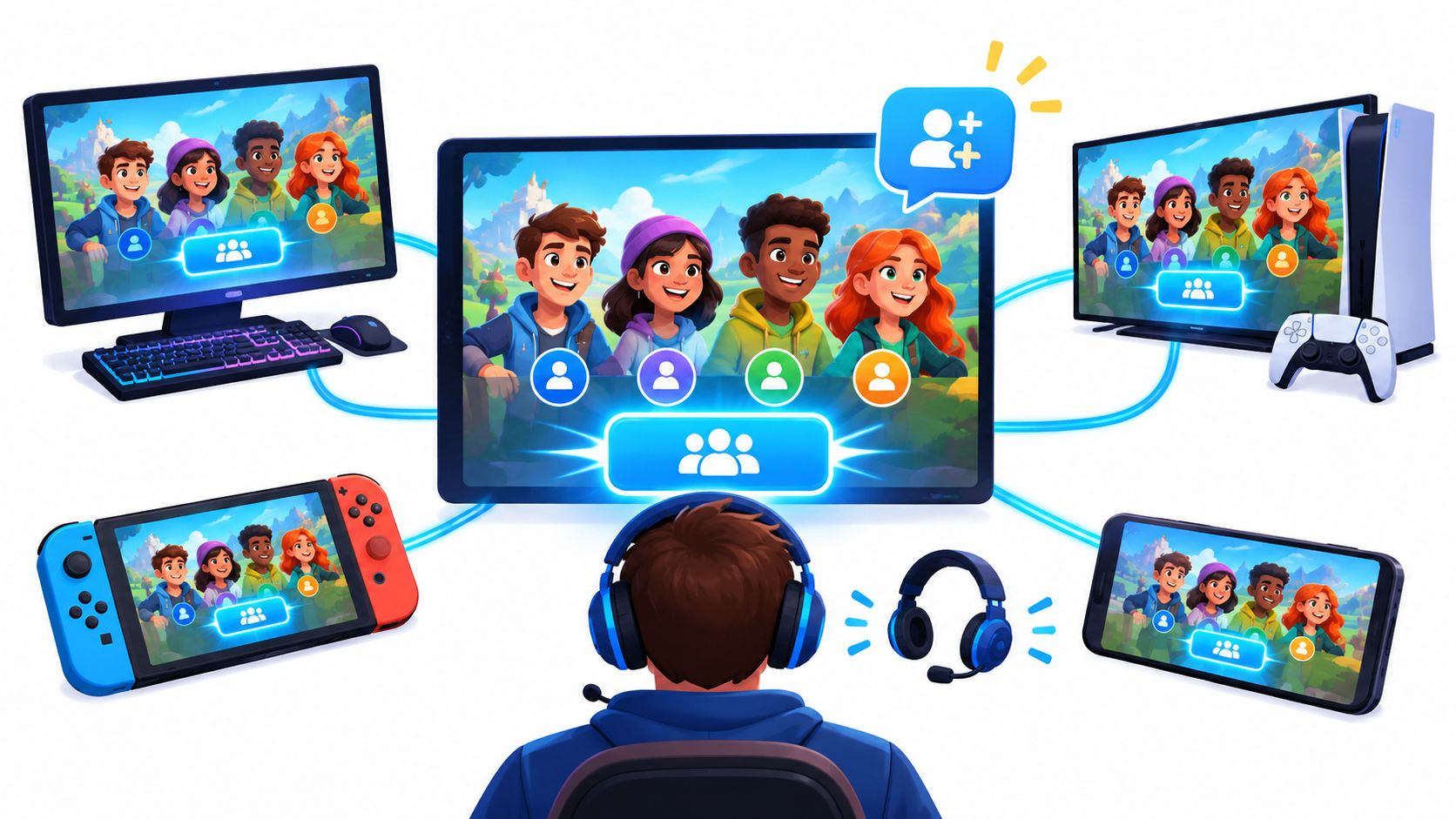
Your friend is already in the lobby, the match is about to start, and the Join button is greyed out. Or the invite pops up just as you're trying to work out whether this group even plays the way you do. The fastest route into a session is useful, but a good join is also a compatibility decision: you want the right game, a stable connection, and teammates whose expectations fit yours.
Start with the route your platform offers, then check the group before you queue. If the session doesn't open, work through the simplest fixes first rather than restarting everything or accepting that a bad connection is just part of the game.
Table of Contents
- Where Each Platform Puts Join Options
- Why Joining Fails and What to Try First
- Checking Fit Before You Queue With a New Group
- Voice and Chat Settings Worth Checking Before You Join
- Leaving a Bad Party Without Losing Your Squad
- Turning One Good Session Into a Regular Squad
Where Each Platform Puts Join Options
Most games give you three ways to enter a session: join a friend who's already playing, accept an invite, or find a public lobby through matchmaking. On PS5, try the friend's live status first:
- Open Friends from the home screen.
- Select your friend. If their status shows the game they're playing, choose Join.
- If the game says the session can't be joined, ask for a party invite instead. Their lobby may be private or full.
- Confirm the party invite, then wait for the game to load the lobby.
The friend's status can tell you they're playing without guaranteeing there's room for another player. A fresh party invite is the sensible next move when direct joining fails, not a reason to keep pressing a disabled button.
For a game-specific walkthrough of setting up a session with friends, use this guide to playing with friends online.
| Platform | Join a friend | Accept an invite | Find a public game |
|---|---|---|---|
| PC (Steam) | Friends list, select name, choose Join Game when shown | Invite pop-up in Steam chat | Game's own lobby or server browser |
| PC (Epic Games) | Friends list, choose Join when status shows the game | Invite pop-up or party window | Playlist matchmaking from the main menu |
| PS5 | Friends list, select friend, choose Join | Party invite in notifications or Control Center | Play or Quick Match menu in the game |
| Xbox Series X|S | Friends list, select friend, choose Join game | Party invite in Party chat or notifications | Play or Matchmaking menu in the game |
| Nintendo Switch | Friends list, choose Join Game when available | Invite sent from the friend's game screen | Lobby browser or Quick Match in the game |
| Mobile (iOS and Android) | Friend list inside the game app | In-app invite link | Lobby list or quick match inside the game |
If a menu label looks different
System updates and game versions can move or rename options. If the label in the table isn't on your screen, check Friends or Party first, then look for the game's own lobby or matchmaking menu. A platform invite may open the game, but some titles still require you to accept or join from inside the game.
Why Joining Fails and What to Try First
A greyed-out Join button usually means the friend's status and the session aren't lining up: they may have left the game, the host may have restricted access, or the lobby may be full. Don't jump straight to rebooting the console. Work from the easiest checks toward network troubleshooting, and ask the host to confirm what they can see.
- Restart the game. Close and reopen it to clear a stale session. This is quicker than restarting the console and often refreshes your online status.
- Check the host's session. Ask whether joining is allowed and whether there's an open slot. A private session or full lobby needs a change from the host, not another attempt from you.
- Confirm cross-play. If your friend is on a different platform, check the game's settings on both sides. Cross-play has to be enabled for the game to connect players across platforms.
- Check your network type. Look in your console's network settings. If it reports strict or restricted NAT, reconnect to Wi-Fi or try a wired connection.
- Request a fresh invite. If the original party request never arrives, ask your friend to resend it from the Party screen.
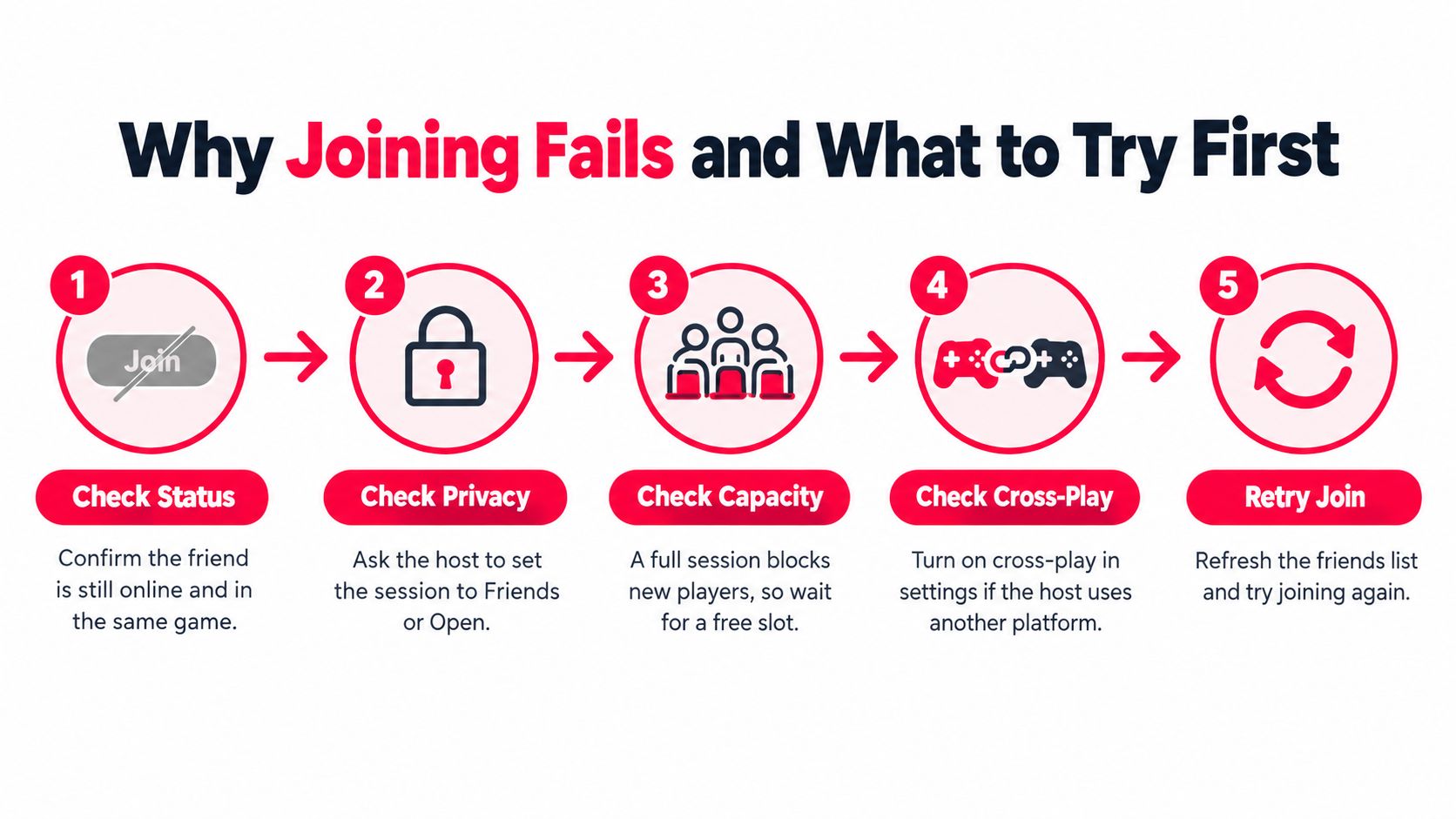
Use the symptom to narrow down the first fix. If the issue persists after the relevant check, move on to the next likely cause instead of repeating the same join attempt.
| Symptom | Likely cause | First fix |
|---|---|---|
| Join button greyed out | Host set the session to private or friends-only | Ask the host to change the setting or send an invite |
| Session is full | No open slots in the lobby | Wait for a slot or ask for a different lobby |
| Stuck on connecting | Stale game client or strict NAT type | Restart the game, then check network type |
| Invite never arrives | Notifications blocked or invite expired | Ask the friend to resend from the Party screen |
| Friend on another platform can't join | Cross-play turned off | Enable cross-play in game settings on both sides |
| Voice drops mid-match | Unstable Wi-Fi or party chat conflict | Switch to a wired connection and leave the party chat |
| Joined but can't hear anyone | Output device or voice setting is wrong | Check the voice output device and chat volume |
Checking Fit Before You Queue With a New Group
Rank alone is a weak filter. Two players can have similar tiers but incompatible roles, schedules, or communication habits, and that mismatch tends to show up once the match starts. Check the basics before you commit to a queue, especially if you're looking for a group you can play with again.
| Criterion | What to check | Red flag |
|---|---|---|
| Rank | Verified tier within one division of yours | Two or more tiers apart, or no verified rank |
| Role or legend | Roles that cover your gaps | Everyone wants the same role |
| Latency | Ping in a range both players can hold | Regions that push ping above 80 ms |
| Schedule | Overlapping hours on two or three planned nights | Only one unplanned session that works |
| Mic | Same mic expectation for everyone | Mic required from some but muted by others |
| Play style | Shared goal, ranked or casual | One player wants ranked and the other only wants to hang out |
The role-based matchmaking research describes skill rating, game settings, and network latency as matchmaking criteria, with roles, play style, preferences, and team chemistry as additional signals. In one League of Legends dataset containing more than 6,000 matches, a role-composition model identified a team configuration with an estimated 87.65% win probability. That result belongs to that dataset and model; it isn't a promise that any particular team will win.
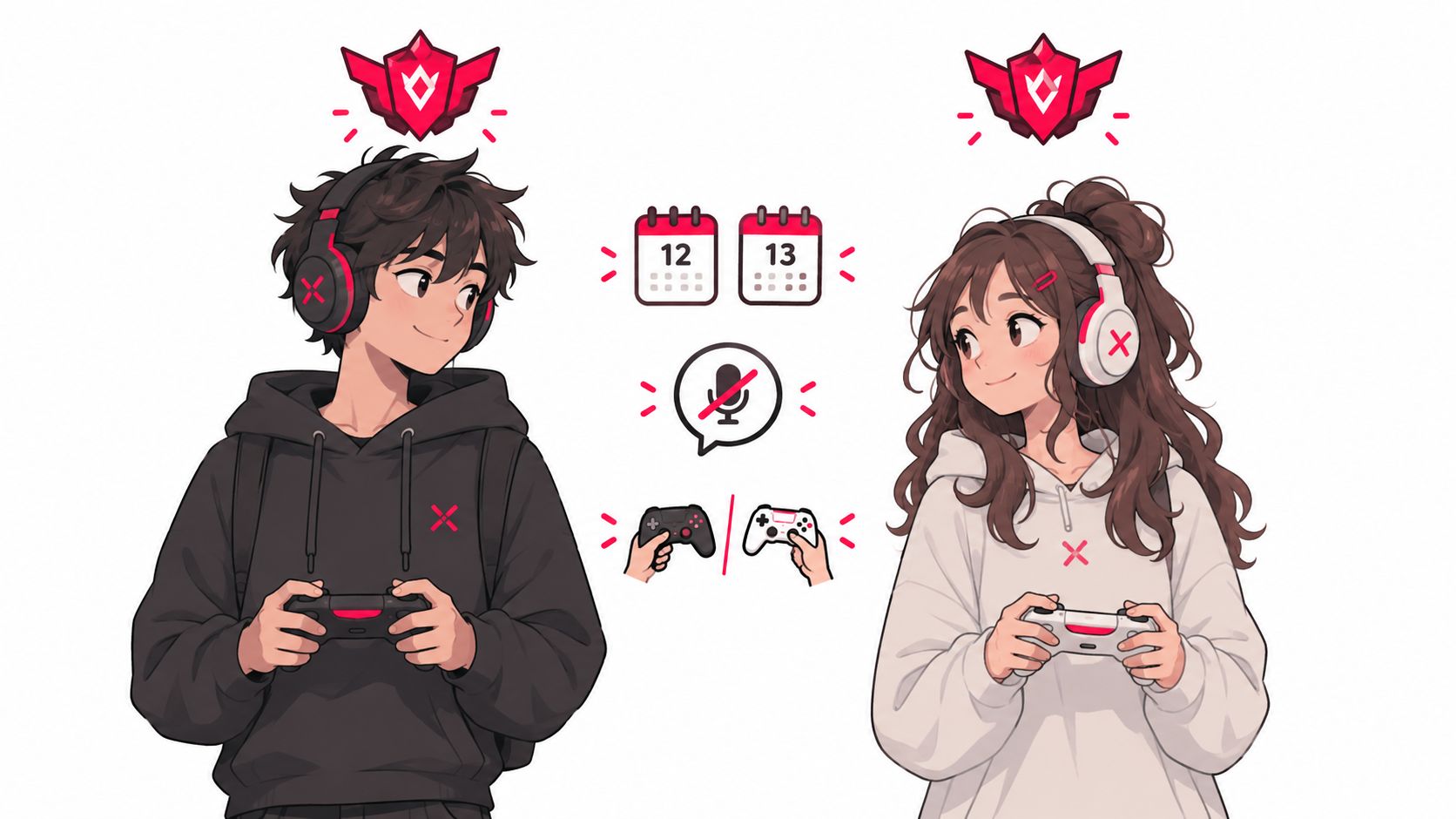
Test the group before you commit
Try a short match before treating a new party as your regular squad. Pay attention to how people share roles, communicate, and respond when a round goes badly. A win can hide a poor fit; how the group handles a setback gives you a better read on whether you'll want to queue together again.
If you're looking for people who already list their game, rank range, platform, and mic preference, a looking-for-group guide can help you think through what to ask before joining.
Voice and Chat Settings Worth Checking Before You Join
A party can feel wrong before anyone's skill becomes relevant if you expect quiet callouts and the rest of the group wants constant voice chat. Set your audio preferences before the match, then use the channel that suits the moment.
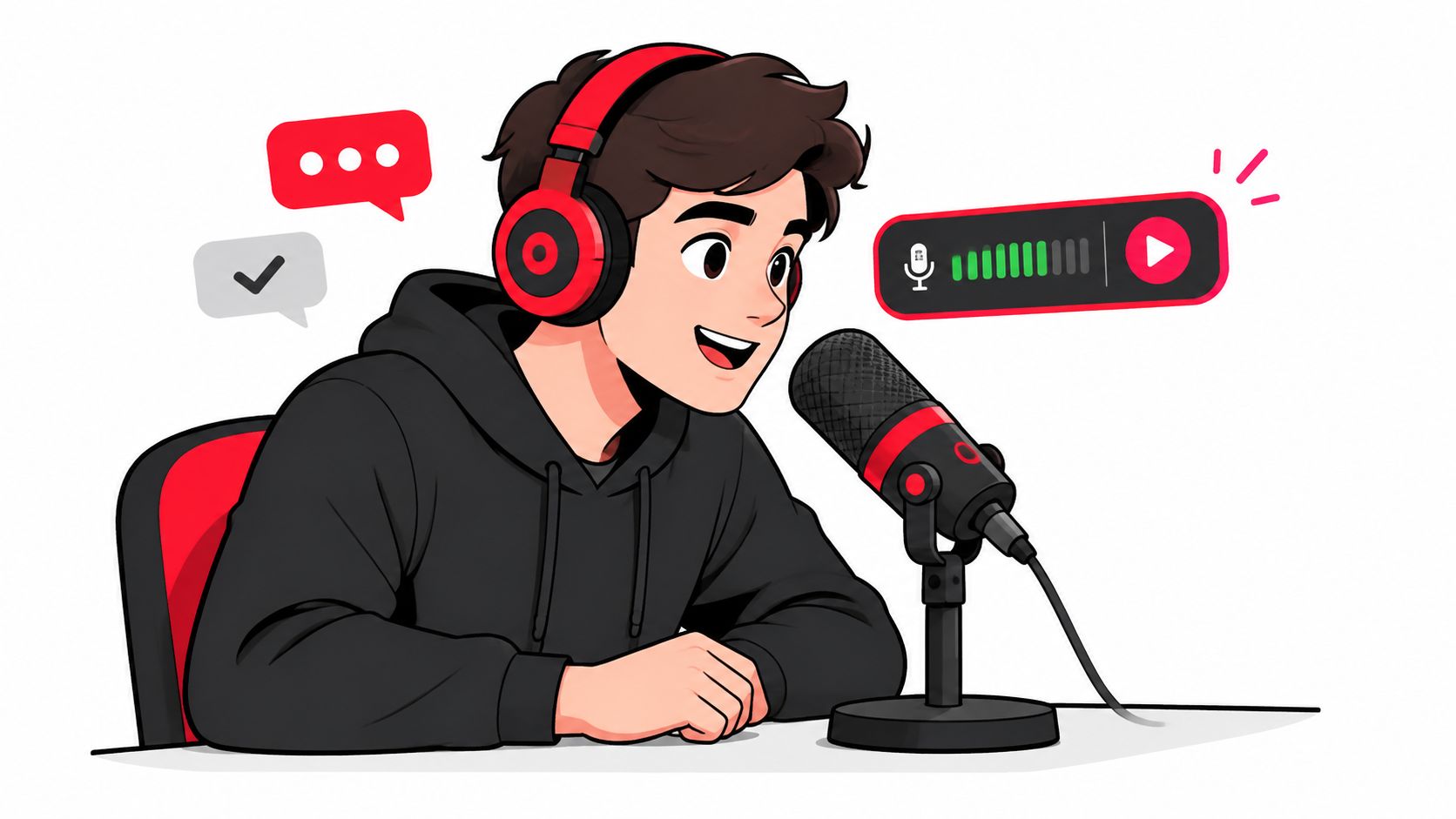
Make the settings match your space
- Test your mic: Record a short sample before the first game. Check that your voice is clear and that the mic isn't picking up keyboard noise or room echo.
- Choose push-to-talk when needed: If your room is noisy, hold-to-talk keeps background sound out of the party.
- Start muted if you prefer: Join with your mic muted, then unmute when you're ready. You can also ask whether the group expects voice before you queue.
- Set the output device: Check that game audio and chat are going to the headset or speakers you intend to use.
Party chat is usually separate from the game's built-in voice channel, while text chat lets you communicate without opening your mic. Use text for a quick question or when the lobby is loud. If someone's frustrated, a short text message can be clearer and less likely to turn a tense round into a mic argument.
For platform-specific audio setup and channel choices, use this practical guide to voice chat for gaming.
The best callouts are brief and useful. Say your role or legend at the start, call a ping or rotation clearly, and leave long explanations for after the round. These phrases keep coordination simple:
- “I'm holding left. Can you cover right?”
- “I've pinged the rotation.”
- “Let's reset and try that again.”
- “Good round, even with the loss.”
A clear, short call beats a long one when your teammates need to act quickly.
Leaving a Bad Party Without Losing Your Squad
A tense round or strategy disagreement is not automatically a reason to leave. Threats, slurs, harassment, or repeated targeting are different. Set a clear boundary and keep the option to play with the rest of your squad.
- Mute the player first. Stop the immediate disruption so you can decide what to do without continuing to hear it.
- Report ongoing behavior in-game. Attach a clip or chat timestamp if the game supports it. Describe the conduct, rather than reporting someone just for disagreeing with you.
- Leave after reporting. Exit the party or lobby, then block the player if that option is available for future matchmaking.
Research on online team competition analyzed more than 10 million player reports associated with 1.46 million potentially toxic players across approximately 6 million matches (Study of toxic behavior in online team competition). Toxic behavior can spread within a team, so muting and reporting early is usually better than waiting for the party to calm down.
Leaving a party doesn't erase your account progress, rank, or friend list. If one disruptive player is the only problem, you can leave that lobby without ending the friendship with the rest of the squad. Use the group chat to suggest another time, and agree on expectations before you queue again. If the whole group keeps targeting or harassing you, leave rather than treating the next match as something you have to endure.
Turning One Good Session Into a Regular Squad
Most good sessions end because nobody asks to play again. Send a low-pressure message while the match is still fresh: name what worked, suggest a specific time, and offer a backup. That turns a vague “we should play sometime” into a plan your teammates can answer.
For example: “Those rotations worked well. Want to run ranked Thursday at 8 pm? If that's no good, I'm free Friday.” Save the group's shared rank expectations, mic preference, and usual play times in a note so your next session starts with the same understanding.
Playing with others is already a regular part of gaming for many people. The Entertainment Software Association's 2024 Essential Facts report found that 74% of U.S. players play with other people online or in person, and 55% do so weekly. The practical part is making it easier to repeat a session with teammates who fit, rather than starting from scratch each time.
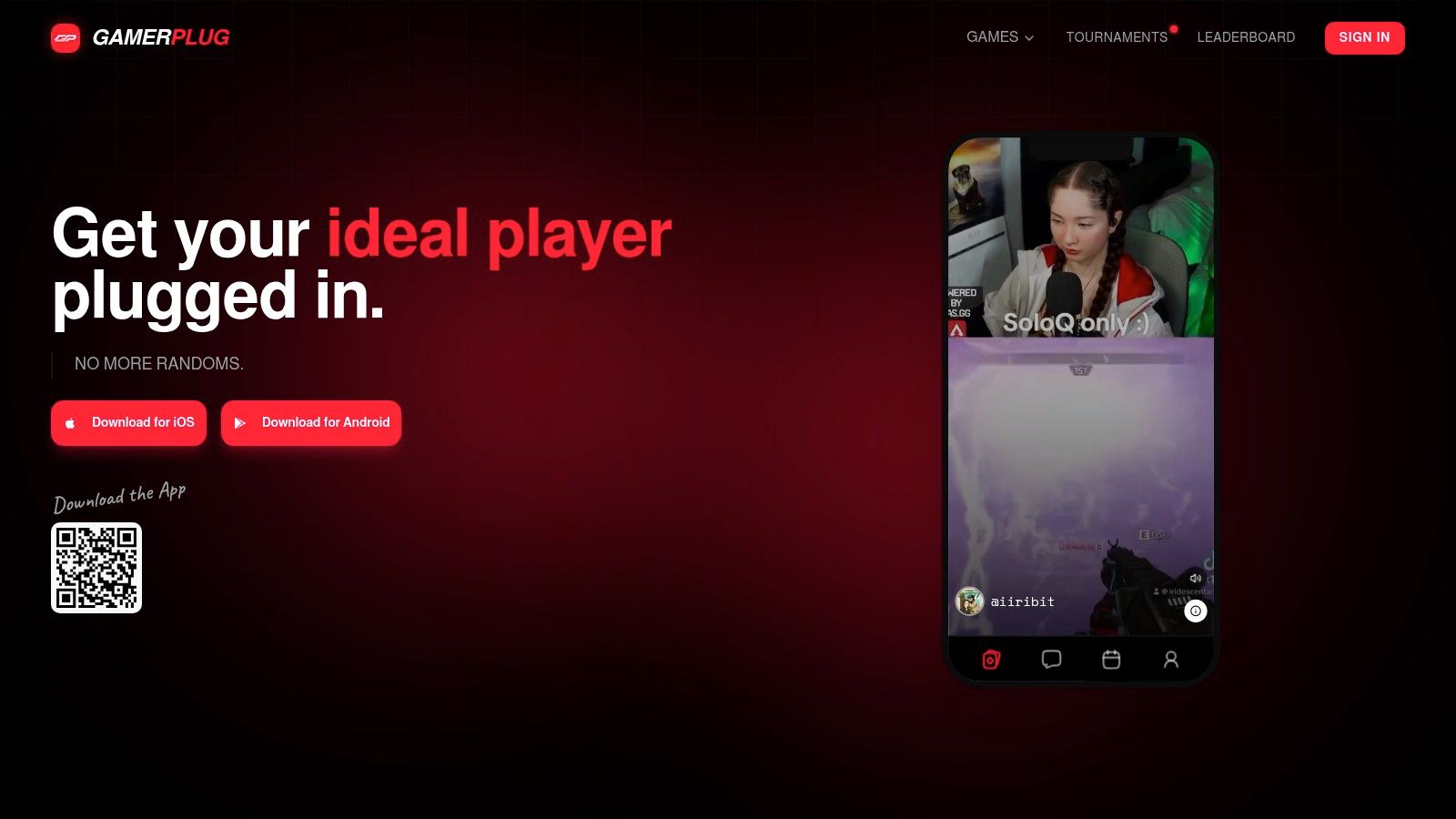
If your group doesn't come back together, GamerPlug is a free app for finding teammates, with verified ranks for Apex Legends, Fortnite, and League of Legends, plus Squads listings where players can set mode, rank range, mic requirements, and open slots.
Need teammates who match your game, rank, mic preference, and schedule? Gamerplug lets you browse player profiles and join or post squad listings before you queue. Set your fit criteria, find a group that suits your next session, and send the invite tonight.