
It's Monday morning, and you need to message a colleague before the standup. Teams is open, but Activity shows notifications, a channel shows project updates, and the meeting window has another Chat button. They all look like places to type, yet they don't send your message to the same people.
The Teams chat window makes more sense once you separate the conversation pane from the place you opened it. Start with the destination, check the header, and then send. If older messages have disappeared, don't assume you clicked the wrong delete button. Your organization's retention policy may have removed them.
Table of Contents
- Where to Open the Teams Chat Window
- Personal Chat Versus Channel and Meeting Chat
- Find a Chat Then Send and Check It
- Alerts and Keyboard Moves That Keep Chat Readable
- When the Chat Window Is Empty or Locked
Where to Open the Teams Chat Window
On a familiar desktop layout, the left rail shows Activity, Chat, Teams, and Calendar. Activity is your notification feed, not your inbox. Select Chat to see your conversation list, then select a conversation to open its message history and composer.
Teams layouts differ across versions and organizational settings. Some combine chats and channels in the same navigation area, and app shortcuts can change with their position. If a shortcut opens the wrong app, use the visible Chat control and check Teams' keyboard-shortcut list.
How to open the Teams chat window on each surface
| Surface | Where it lives | Fastest open |
|---|---|---|
| Windows desktop | Chat on the left app bar | Ctrl+2 to open Chat in layouts with that assignment; Ctrl+N for a new chat |
| Mac desktop | Chat on the left app bar | Command+2 to open Chat in layouts with that assignment; Command+N for a new chat |
| Web at teams.microsoft.com | Chat in the left rail after sign-in | The corresponding Ctrl or Command shortcuts when supported and focus is inside Teams |
| iPhone and Android | Chat tab along the bottom | Tap Chat, then the compose pencil |
| During a meeting | Chat button in the meeting controls | Opens that meeting's thread, not the main Chat list |
| Pop-out thread | More options on an open chat | Select Open in new window to keep the thread beside other work |
Identify the conversation pane
The persistent conversation pane contains the header, message history, and writing area for a direct or group conversation. A channel post belongs to a project space instead. The pane beside a meeting stage belongs to that meeting, even if you can also find its thread elsewhere afterward.
For web access, open Teams in your browser and sign in with the intended work or school account. Clicking inside Teams before using a shortcut helps avoid triggering a browser command.
Read the header before typing. A person's name, a group name, or a meeting title tells you more than the presence of a message box.
If your confusion extends to how conversations connect with business content, Kogifi's guide to connecting Sitecore XM Cloud to Microsoft 365 provides useful ecosystem context. For everyday messaging, though, the immediate task is simpler: identify the conversation you opened.
Personal Chat Versus Channel and Meeting Chat
Say you type a status update for Priya, press Enter, and discover you've posted it to the project channel. The composer looked familiar, but the audience was wrong. A shared interface doesn't mean a shared destination.
Use this visual as a reminder to verify the recipient before sending.
Which Teams window receives the message
| Window | Opened from | Who sees it | After you leave |
|---|---|---|---|
| Personal or group chat | Chat on the app bar | People in that thread, subject to organizational compliance controls | Stays in the Chat list unless hidden or otherwise removed |
| Channel post or reply | Teams, then the channel, or channels within combined navigation | Members who can open that channel | Stays in channel history, subject to retention |
| Meeting chat | Chat on the meeting controls | Eligible meeting participants, including guests when permitted | Tied to the meeting; it may also appear in Chat, with continued access governed by meeting settings |
Choose by audience and purpose
Personal Chat suits a conversation with a particular colleague or selected group. Ending a call with those people doesn't end the underlying chat. However, private from other teammates doesn't mean exempt from your employer's compliance policies.
Channel conversations belong where project members can find them. Replies sit beneath a post in post-based channel layouts, keeping discussion attached to its subject. Check the channel's membership rather than assuming everyone in the organization can read it.
Meeting chat accompanies a scheduled or live discussion. Don't assume everyone attending has identical access before, during, and after the meeting. Guests, invitation methods, and organizer settings can affect participation.
In a study drawing on diaries from 849 employees and a survey of 149 employees, Microsoft Research reported that 85.7% viewed parallel meeting chat as a net positive, while also documenting distraction when participants followed spoken discussion and chat together.
Practical rule: Use direct Chat for a limited audience, a channel for a project decision, and meeting chat for discussion attached to the call. Record lasting decisions in the approved project record.
The same audience-first approach matters when consolidating chat, voice and video, as MR2 Solutions discusses. Bringing communication tools together doesn't remove the need to choose who should receive each message.
For a broader look at the controls around these conversations, consult the Teams chat features guide. This video provides another visual reference for navigating Teams:
Find a Chat Then Send and Check It
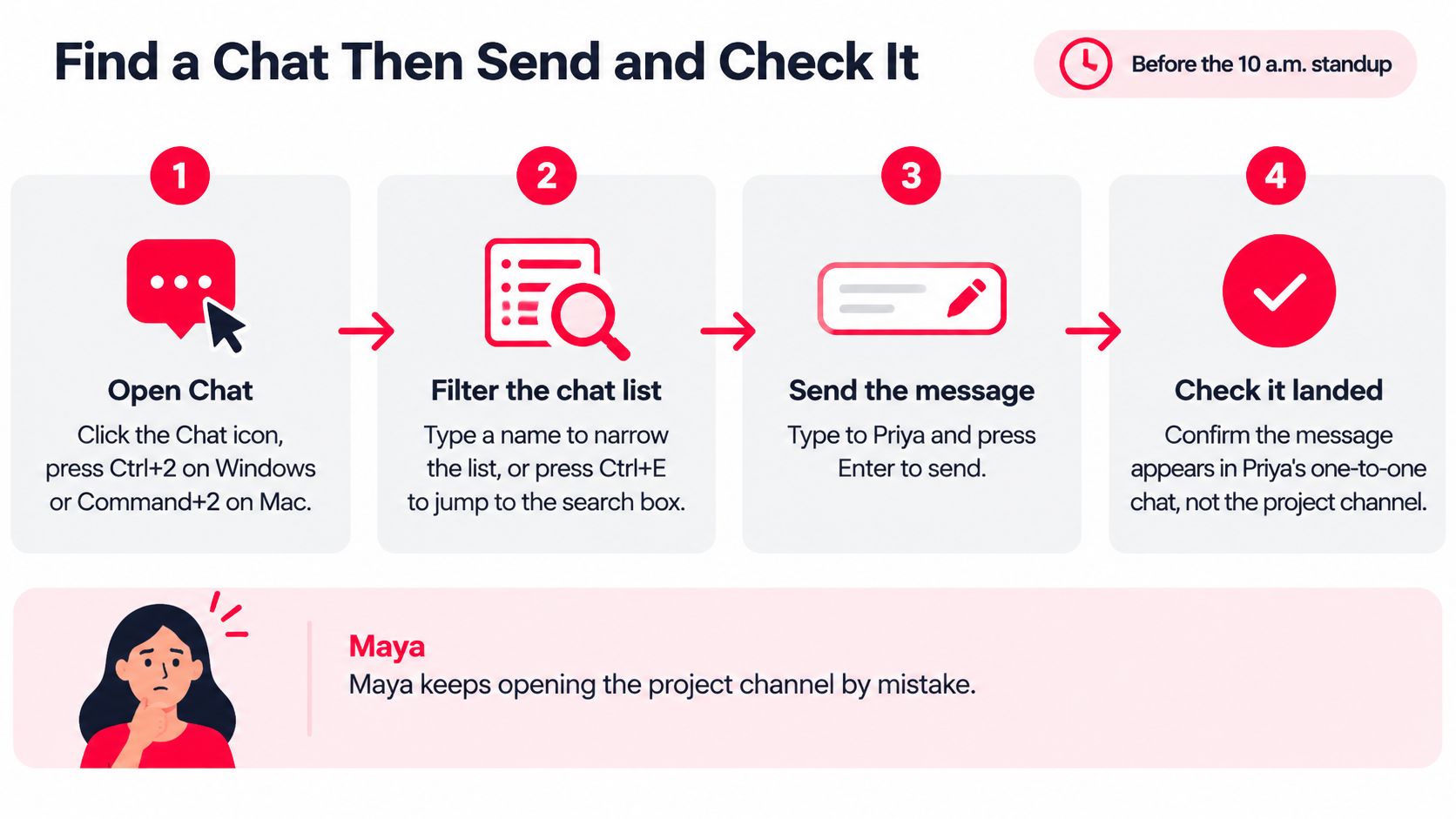
Say Maya needs Priya before the morning standup but keeps reopening the project channel. She doesn't need to scroll through every recent conversation. She needs to find the right recipient, write in that thread, and verify the send.
Search is a sensible habit in a busy workspace. According to Sci-Tech Today, Teams users sent an average of 22 billion messages per month in 2024. That's platform-wide activity, not a measure of your inbox, but it illustrates why retrieving a conversation matters as much as opening one.
Follow the find-and-send path
Open Chat rather than a recent notification. Select the Chat icon. On desktop layouts that use the familiar assignment, Ctrl+2 on Windows or Command+2 on Mac opens it. Using the icon is the safer choice when your app order or layout differs.
Narrow the list or search across Teams. Use the chat-list filter when you know the conversation's name. For a wider search, select the search box, or use Ctrl+E on Windows or Command+E on Mac where supported. Try Priya's name, full email address, or a distinctive phrase from an earlier exchange.
Open the result and inspect its identity. A person result can help you start or resume a direct conversation; a message result takes you to the conversation containing that message. For a common name, check the profile or email before continuing. Don't choose someone solely because their display name looks familiar.
Click the composer. Place the cursor in the writing area at the bottom of the intended thread. If there's no usable composer, don't keep typing into the search box or assume your keyboard has stopped working. Check whether the conversation is read-only.
Write a note that includes the action. For example: Priya, can you confirm the release checklist before the standup? The permissions item still needs an owner. In a group chat, use an @mention when you need to draw a particular person's attention. An ordinary direct message doesn't need an @mention to establish its recipient.
Attach the relevant document when needed. Use the attachment control, which may appear as a paperclip or inside the composer's actions menu. Prefer the shared working document over uploading another copy when colleagues need to edit the same file. Check that the recipient has permission to open it.
Send, then inspect the result. In the standard composer, Enter sends and Shift+Enter adds a new line; expanded formatting or configured behavior may require the Send button. Confirm that your message appears in the conversation with its timestamp and no pending or failed-send warning.
Verify delivery without overreading it
A message appearing in the thread isn't proof that Priya has read it. Read receipts, where available and enabled, are separate from sending. If Teams shows a delivery error, use the retry control rather than repeatedly pasting the same note.
For a daily contact, open the chat's More options menu and use the available pin, favorite, or section-organizing control. Keep that priority area limited to conversations you return to. Otherwise, it becomes another long list to search.
This checklist pairs the sending routine with the navigation and alert controls you'll use around it.
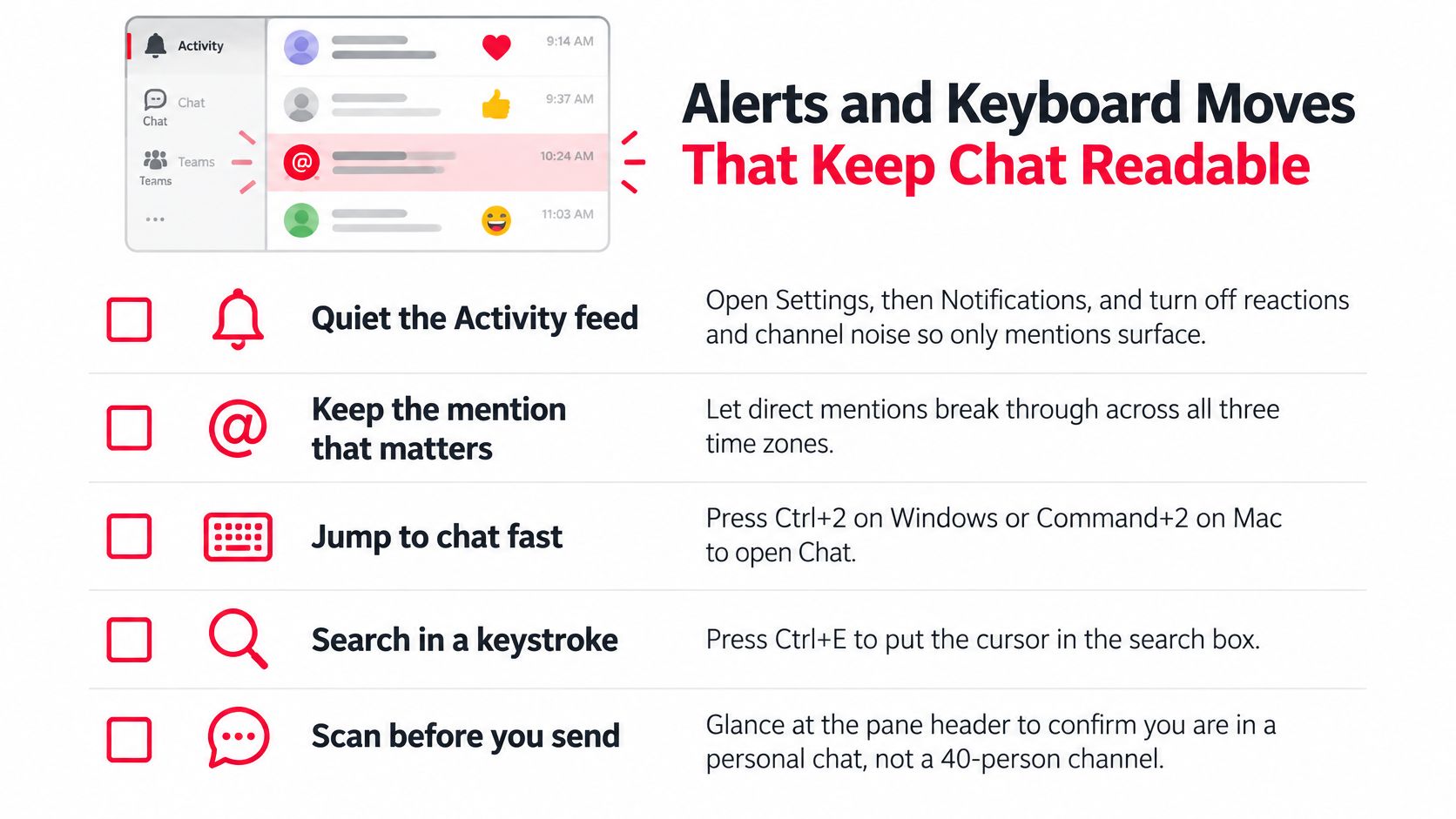
Before closing the window, resolve any unfinished attachment upload or failed send. If Maya needs an urgent answer, she can follow her team's agreed escalation method rather than treating silence as confirmation.
Alerts and Keyboard Moves That Keep Chat Readable
A full Activity feed can contain reactions, channel updates, replies, and messages from colleagues working different hours. Making every event a banner doesn't help you identify the important one. Configure alerts around what requires your response, then use Activity to review the rest.
Start in Settings, then look for Notifications or Notifications and activity, depending on your version. Adjust the available chat, mention, reply, reaction, banner, and email controls deliberately rather than turning everything on.
Set priorities in one sitting
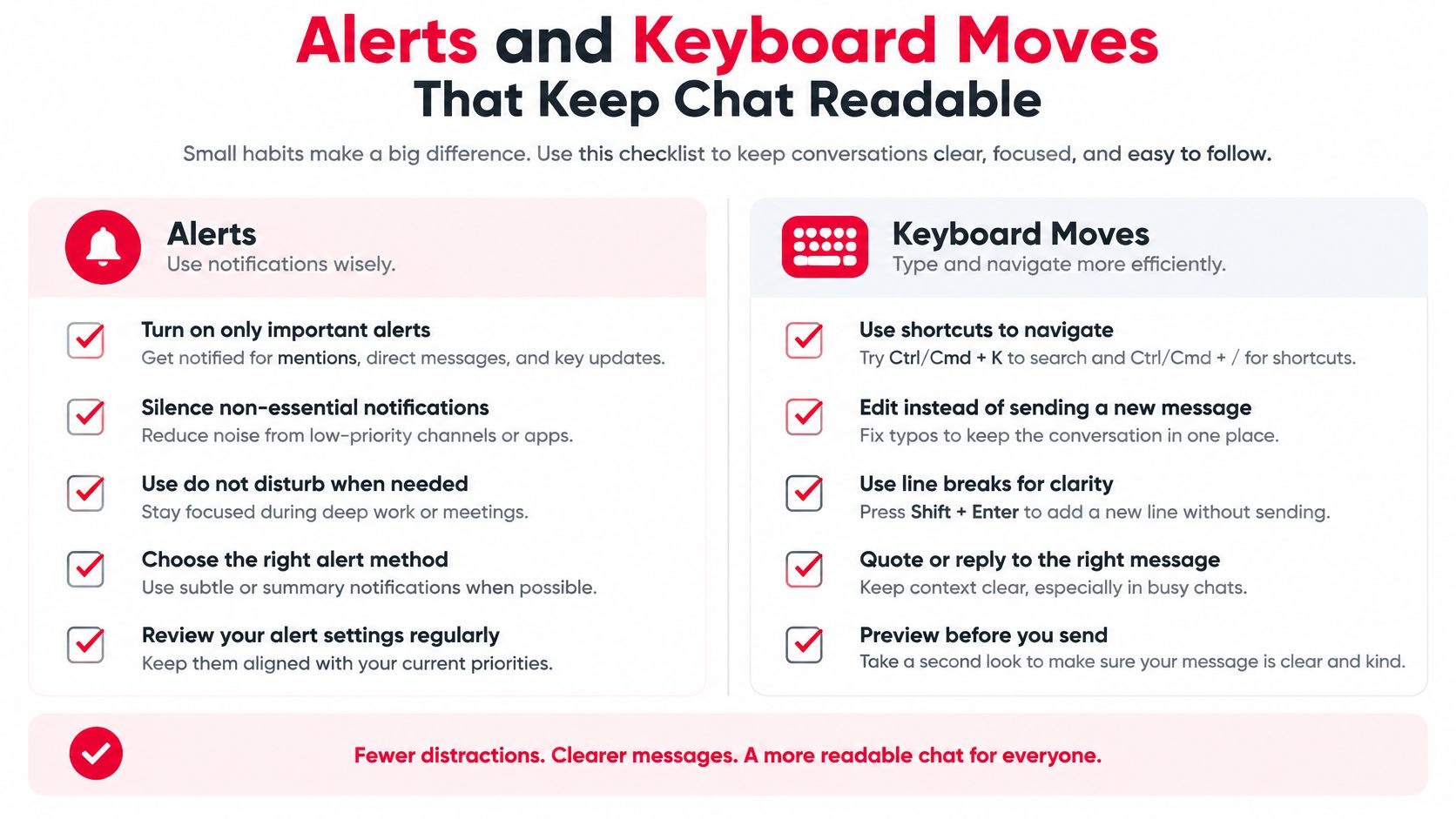
- Keep actionable alerts. Enable the available alerts for direct messages, mentions, and replies that need your attention. Avoid duplicating every event in both email and banners unless you need both.
- Quiet low-value activity. Reduce reaction alerts and broad channel notifications. You can still open those conversations when you're ready.
- Mute the noisy thread. Use a group chat's More options menu rather than silencing the whole application. Check how your version handles mentions in muted conversations.
- Review Activity intentionally. Filter to mentions when catching up, then inspect relevant replies. Don't rely exclusively on a banner you might miss while presenting.
For teams spread across locations, Nutmeg Technologies' guidance on managing Teams alerts across multi-site offices offers useful context for agreeing on notification habits rather than expecting everyone to monitor every thread.
The checklist below keeps those choices visible while you adjust your settings.
Build a keyboard-first review loop
Microsoft's screen-reader guide for Teams documents Ctrl+N for starting a new chat and reviewing recent activity, including mentions, replies, and reactions. On Mac, use Command+N for a new chat where supported.
Use Tab to reach the conversation list, arrow through its items, and press Enter to open the selected conversation. Escape can dismiss a menu or leave a local interaction, but it isn't a universal return-to-chat-list command. Follow the screen reader's focus announcement before typing.
More alerts don't make chat more accessible. A predictable review path and fewer interruptions can be more useful than another disappearing banner.
The coordination habits in this squad group chat guide also apply to busy social conversations: agree on what deserves an interruption. Finish by asking a colleague to send a group @mention and then a reaction. Confirm that the mention produces your intended alert and the reaction stays quiet.
When the Chat Window Is Empty or Locked
An old message is gone, and Undo won't bring it back. Before reinstalling Teams, separate hidden navigation, restricted participation, and deleted history. They can look similar from the message pane, but they need different responses.
Chat window problems and the fix to try first
| What you see | Usual cause | First fix |
|---|---|---|
| Chat list is gone | Left rail collapsed or you're inside a pop-out | Return to the main Teams window, select Chat, or close the pop-out |
| Composer will not accept text | Organizer disabled meeting chat, or the guest lacks permission | Ask the organizer to check meeting options |
| Person does not appear in search | Filter is limited to one chat or a channel | Clear the filter and search by full email |
| Old messages disappeared | Organizational retention may have deleted them rather than a local glitch | Check policy; files may still be in OneDrive or SharePoint |
Distinguish a blocked action from missing history
A disabled meeting composer isn't necessarily an application fault. Ask the organizer whether meeting chat is enabled and whether your participant status permits access. Signing in with the wrong account can also put you in a different organizational context, so check your profile before troubleshooting further.
For missing search results, remove restrictive filters and verify the account and organization you're searching. A person's absence from a narrow result list doesn't establish that their messages were deleted.
When older history disappears while newer messages remain, retention is a serious possibility, not proof of a failed manual delete. Microsoft's Teams retention documentation explains that policies can retain or delete chat and channel messages, while edited or deleted content may remain in compliance storage before final deletion.
Check what remains and who can recover it
Compliance storage isn't a user-accessible recycle bin. Content preserved for organizational obligations may not be available for you to restore to the chat window. Ask your IT or records team which policy applies and whether any authorized recovery route exists.
Also distinguish message text from shared files. A removed message doesn't necessarily remove its attachment from OneDrive or SharePoint. Check the original storage location and your permissions rather than assuming the document disappeared with the conversation.
- For an important decision: Store it in the approved document or records location, with its owner and outcome.
- For an attachment: Search the relevant OneDrive or SharePoint library.
- For a support request: Provide the conversation name, affected account, and approximate period of missing history.
The same archive question belongs on any team chat comparison checklist. Check your employer's or school's rules before treating a chat thread as a permanent record, and don't expect a local reset to recover policy-purged text.
Gamerplug helps you find gaming teammates and coordinate through direct, squad, and tournament conversations. Visit Gamerplug to find players who fit your games and schedule, then keep roster plans and match coordination in the right thread.